Adding a lead captures everything you know about a prospect in one place: how they found you, who to talk to, and the project they have in mind. This guide walks through the New lead form.
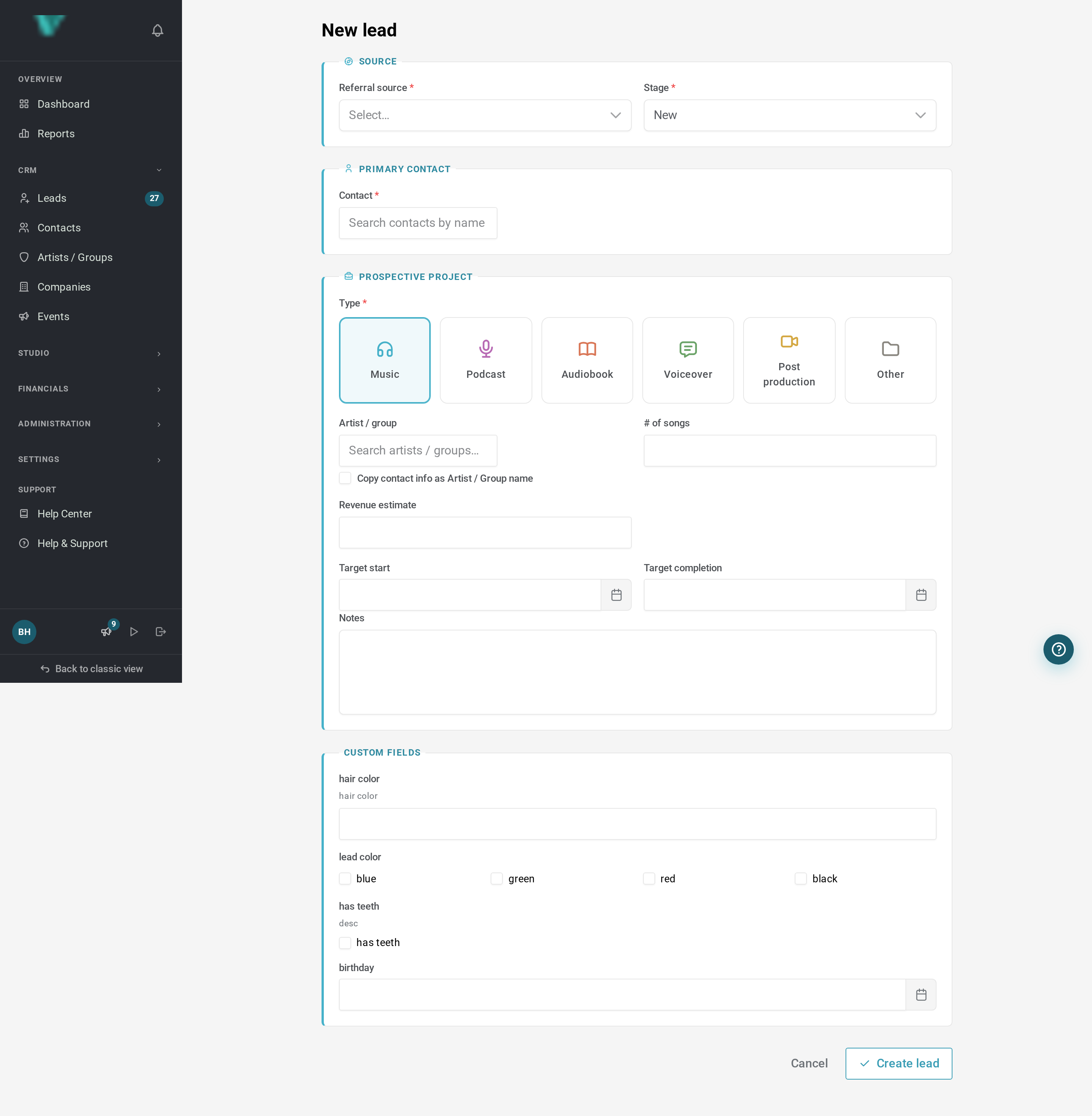
Open the New lead form
In the sidebar, under CRM, click Leads. On the Leads list, click New lead in the top right. This opens the full New lead page, organized into a few sections you fill top to bottom.
Fields marked with a red asterisk are required. If anything is missing or invalid when you save, a red message appears at the top and the affected fields are highlighted.
Source
- Referral source (required): How the lead found your studio, chosen from your Referral Sources picklist (for example Social Media, Word of Mouth, or Web: Organic Search).
- Stage (required): The lead's current stage. This defaults to your first lead stage (usually New), and you can change it.
- Event: This field appears only when you set Referral source to Event. Search for and select the marketing event the lead came from. You need at least one marketing event set up for it to appear here.
Primary contact
- Contact (required): Search by name or email and pick the person this lead is for. The list draws from your existing contacts.
Prospective Project
- Type (required): Choose Music, Podcast, or Video by clicking one of the tiles. Your choice changes which fields appear below.
- Artist / group (Music only): Search for and select the artist or group. You can instead check Copy contact info as Artist / Group name to create the artist or group from the contact's name automatically.
- Company (Podcast and Video): Search for and select the company for the project.
- Genre (Podcast and Video): Choose a genre from the picklist. For Music leads the genre is stored on the artist or group record, so it does not appear here.
- # of songs (Music) or # of episodes (Podcast and Video): The expected count for the project.
- Revenue estimate: An estimate of the project's revenue, shown in your studio currency. This is for your reference only. It is not shown to the lead and does not generate a quote.
- Target start and Target completion: The planned start and finish dates for the project.
- Notes: Any free text you want to record about the lead or project.
If your studio has set up custom fields for leads, they appear in their own section below the project details.
Save the lead
Click Create lead to save. Sonido opens the new lead's detail page, where you can keep working the lead, add notes, tasks, and files, and later convert or close it. To leave without saving, click Cancel to return to the Leads list.