The contact list
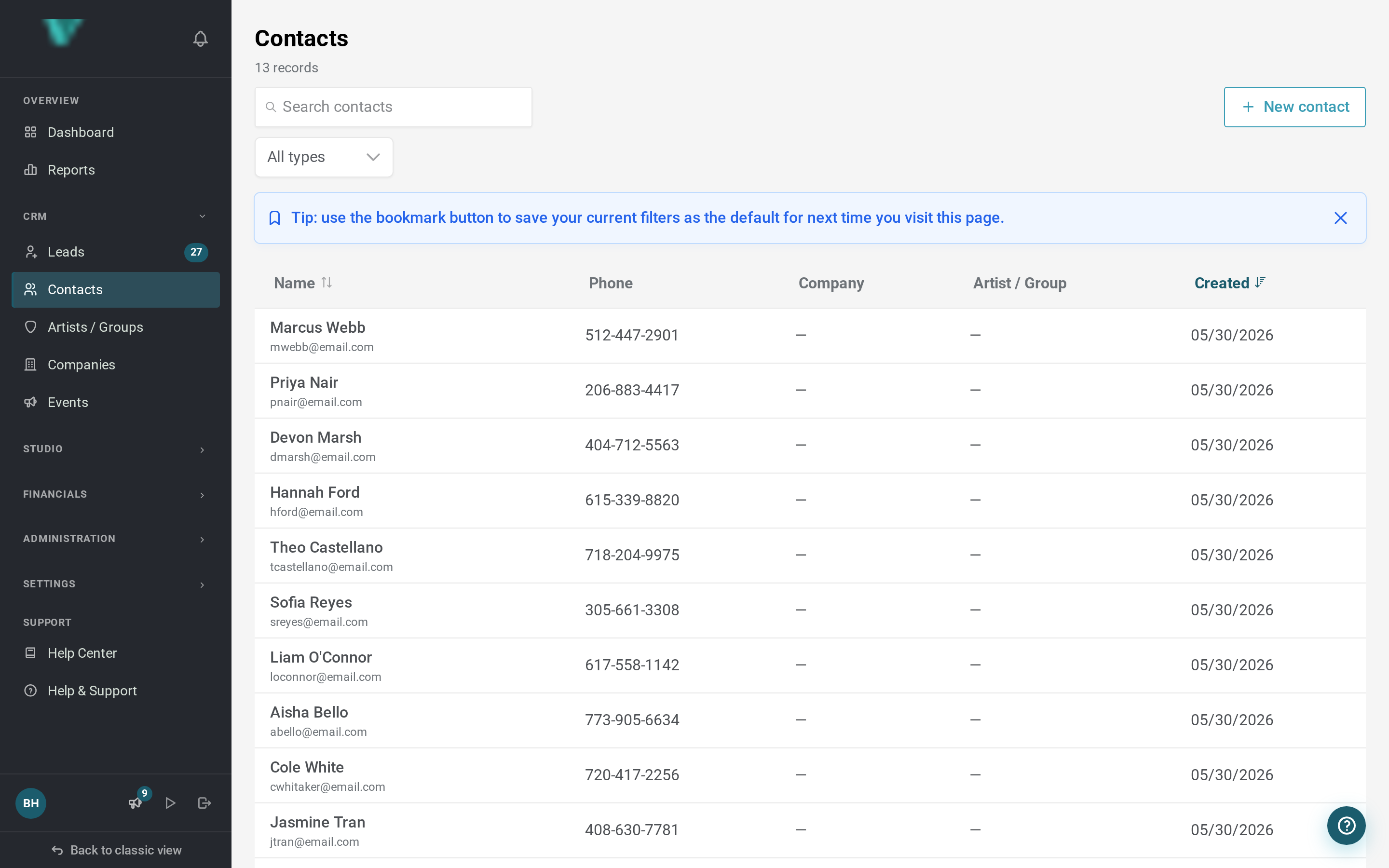
Open the CRM section of the main menu and select Contacts to see every contact saved in your account. Each row shows the contact's name (with their email beneath it), phone number, company, artist or group, and the date the record was created.
Add a contact
Select New contact at the top right of the list to open the New contact page. See the Add a contact article for a walk through of the form.
Search
Type a name or email in the Search contacts box at the top of the list. The list narrows to matching records as you search, and also matches text stored in your custom fields. Clear the box to return to the full list.
Filter by type
Use the type filter above the list to show only one contact type at a time. It is set to All types by default.
Sort
Select any column header to sort by that column. Select the same header again to reverse the direction.
Paging
When you have more contacts than fit on one page, page controls appear at the bottom of the list so you can move between pages and choose how many records to show at once.
Open a contact
Select any row to open that contact's detail page, where you can review and update everything about them. See the Manage a contact article for more.