Coupon codes let you discount services across Sonido, including online bookings, invoices, and quotes. You control the code text, the discount type and amount, and optional usage limits such as a redemption window, a total redemption cap, and a one use per customer restriction.
Use them to run first time customer incentives, marketing campaigns, loyalty discounts, or member only offers.
Where to find coupons
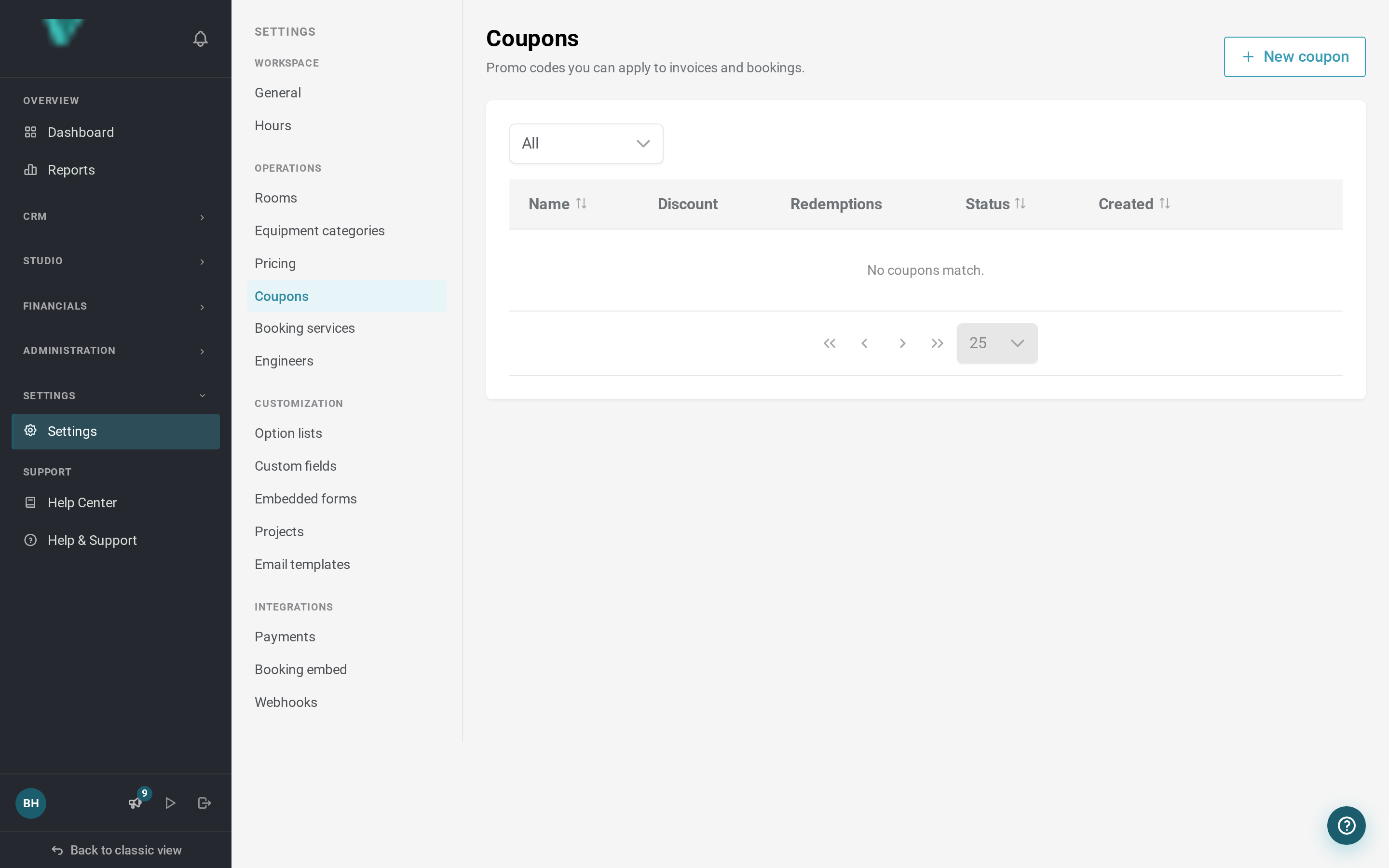
Go to Settings, then open the Operations section and choose Coupons. The Coupons screen lists every code you have created, with columns for Name (the code shows underneath), Discount, Redemptions, Status, and Created.
Use the Status dropdown above the table to filter by All, Active, Inactive, or Expired. You can sort by Name, Status, or Created, and change the rows per page (10, 25, or 50).
Create a coupon
Select New coupon in the top right. In the dialog, fill in:
- Name: a label to recognize the coupon by. Required.
- Code: the text customers enter to redeem the discount. Required.
- Discount type: Fixed amount or Percentage.
- Discount amount (or Percent off for a percentage): the value of the discount. A percentage must be between 0 and 100.
Optional limits
Each limit is off by default. Turn on the toggle to reveal its fields.
- Limit redemption window: set a Starts and Ends date so the coupon only works within that range. Both dates are required when this is on.
- Limit total redemptions: set a Maximum redemptions value (1 or more) to cap how many times the coupon can be used overall.
- One use per customer: restrict each customer to a single redemption.
Select Save to create the coupon.
Edit or delete a coupon
On any row, use the pencil icon to edit or the trash icon to delete.
Editing opens the same dialog with an added Status field (Active, Inactive, or Expired) so you can turn a coupon on or off without deleting it.
Deleting a coupon also clears its redemption history, so Sonido asks you to confirm first.