Bookings are the backbone of your studio schedule. Each one records a session's time, room, staff, and any client or project it belongs to.
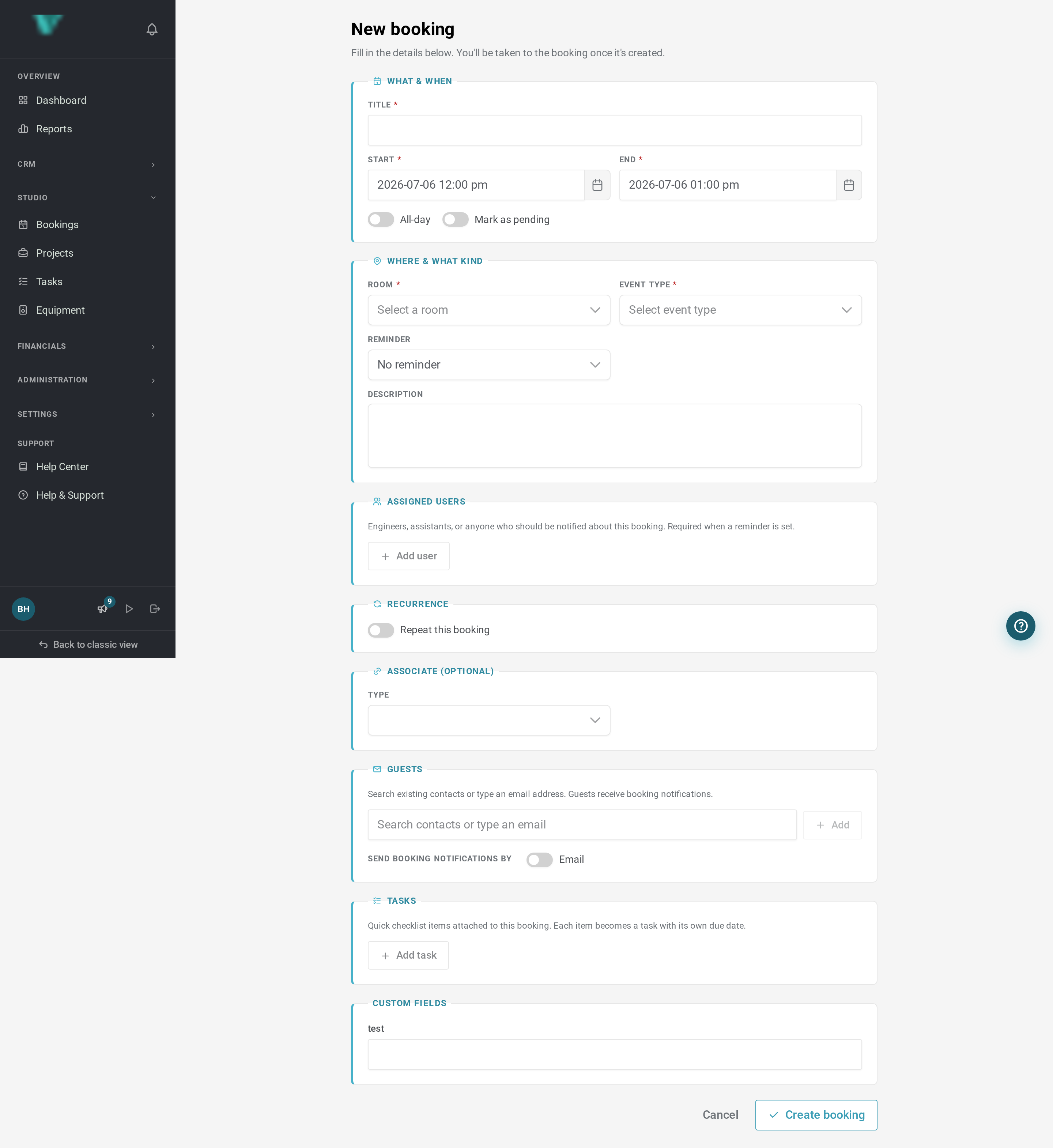
Open Bookings from the Studio section of the sidebar to reach the calendar. To start a new booking, select New booking in the top right. This opens the New booking page, which is organized into the sections below. Fields marked with an asterisk are required.
What and when
- Title (required): a short name for the session.
- Start and End (required): pick the date and time for each. The end must be after the start, or the field flags an error.
- All-day: turn this on to block the whole day instead of picking times.
- Mark as pending: turn this on to hold the booking as tentative. Pending bookings show on the calendar with a striped overlay until they are confirmed.
Where and what kind
- Room (required): choose which room the session uses.
- Event type (required): choose the kind of session, such as Recording, Editing, or Mixing.
- Department: appears and becomes required only when your studio has the booking department setting turned on.
- Reminder: choose when an in app reminder fires (for example, 15 minutes before or 1 day before). A reminder needs at least one assigned user, so add one in the next section if you set a reminder.
- Description: free text notes about the session.
Assigned users
Add the engineers, assistants, or other staff who should be on this booking. Select Add user, pick the person, and choose their role (Engineer, Assistant, Producer, and so on). Select Add user again for each additional person. You can assign more than one user, but the same person cannot be assigned twice.
If you set a reminder in the previous section, at least one assigned user is required so there is someone to remind.
Recurrence
To repeat the booking on a schedule, turn on Repeat this booking, then set:
- Repeat every and Interval: how often it repeats (for example, every 2 Weeks).
- End after: choose Occurrences to stop after a set number, or End date to stop on a specific date. A second field appears for the count or the date.
A preview lists the bookings that will be created, showing the first several with a "+ N more" note when there are more. A recurring schedule is capped at 366 bookings.
Associate (optional)
Link the booking to a record so it appears on that record's calendar and carries its details.
- Type: choose Contact, Company, Artist / Group, Lead, or Project (or None to leave it unlinked).
- Associate: search for and pick the specific record.
- Project songs: when the type is Project, an extra field lets you attach songs from that project to the session.
Guests
Guests are usually outside clients rather than studio staff. In the Guests section, search your existing contacts or type an email address, then select Add. Each guest appears as a removable chip.
Use the toggles under Send booking notifications by to choose how guests are notified:
- Email: sends a booking confirmation and reminder by email.
- SMS: sends notifications by text message. This toggle appears only when your studio has the SMS add on enabled.
For more on what these notifications contain, see Calendar booking notifications.
Tasks
Attach a checklist to the booking. Select Add task, then give each item a title and due date. You can also add notes, assign users, and set a per task reminder (the reminder becomes available once at least one user is assigned to that task). Each item becomes its own task tied to the booking.
Save the booking
Select Create booking at the bottom of the page. You are returned to the calendar showing the week of the new booking.
If the room or an assigned user is already booked during that window, or an assigned engineer has time off that overlaps it, Sonido warns you first. You can cancel and adjust, or choose Book anyway to schedule it regardless.