Tasks help you track the work and reminders that keep your studio running. This article covers creating a new task from the Tasks page. You can create the same way from a record's Tasks tab (see below).
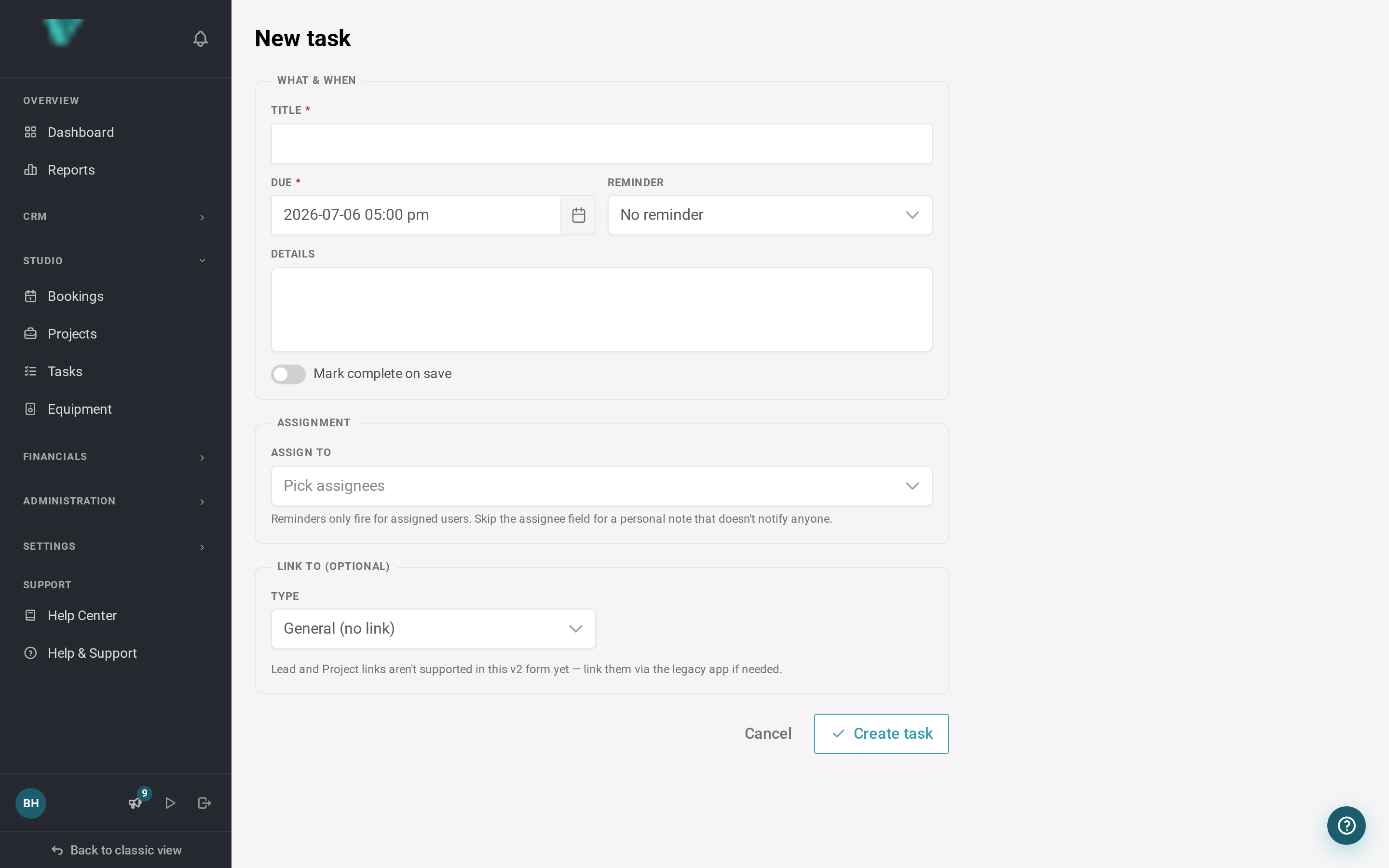
Open the new task form
In the sidebar under Studio, select Tasks to open the Tasks page, then select New task. This opens the New task form.
Fill in the "What & when" section
- Title (required). A short name for the task.
- Due (required). Pick a date and time. The picker uses a 12 hour clock and defaults to end of day so a reminder can still fire the same day.
- Reminder. Choose when a reminder should fire: No reminder, At time of due, 5 minutes before, 10 minutes before, 15 minutes before, 30 minutes before, 1 hour before, 2 hours before, or 1 day before. Reminders only fire for the users assigned to the task.
- Details. Optional notes about the task. These details appear in the reminder notification, so a thorough description helps.
- Mark complete on save. Turn this on to create the task already marked complete. Tasks are created incomplete by default.
Assign the task
In the Assignment section, use the Assign to field to pick one or more users. Reminders only fire for assigned users. Leave the field empty for a personal note that does not notify anyone.
Link to a record (optional)
In the Link to (optional) section, use the Type field to tie the task to another record:
- General (no link). The default. The task stands on its own.
- Contact, Company, or Artist / Group. Choosing one of these shows a Record field where you search for and select the specific record.
Linked tasks appear on that record's Tasks tab. Lead and Project links are not supported in this form yet. Link those through the legacy app if you need them.
Save the task
Select Create task. The task is saved and you return to the Tasks page. If you assigned it to another user, it appears in their task list right away and they receive an assignment notification.
Create a task from a record
You can also create a task straight from a Contact, Company, Artist / Group, Lead, or Project record. Open the record, go to its Tasks tab, and select New task. The task is linked to that record automatically.