The Data import tool lets you bring your existing contact list into Sonido from a CSV file. You upload the file, map each of its columns to a Sonido contact field, and start the import. With a little formatting up front, most lists import cleanly.
If you also plan to import Artists / Groups or Companies, import your Contacts first. When you import those record types you can link an existing Sonido contact as the primary contact, which is only possible once the contact already exists.
Download the contact template
The tool provides a ready made template that already contains every supported contact column header. Using it is the easiest way to structure your list.
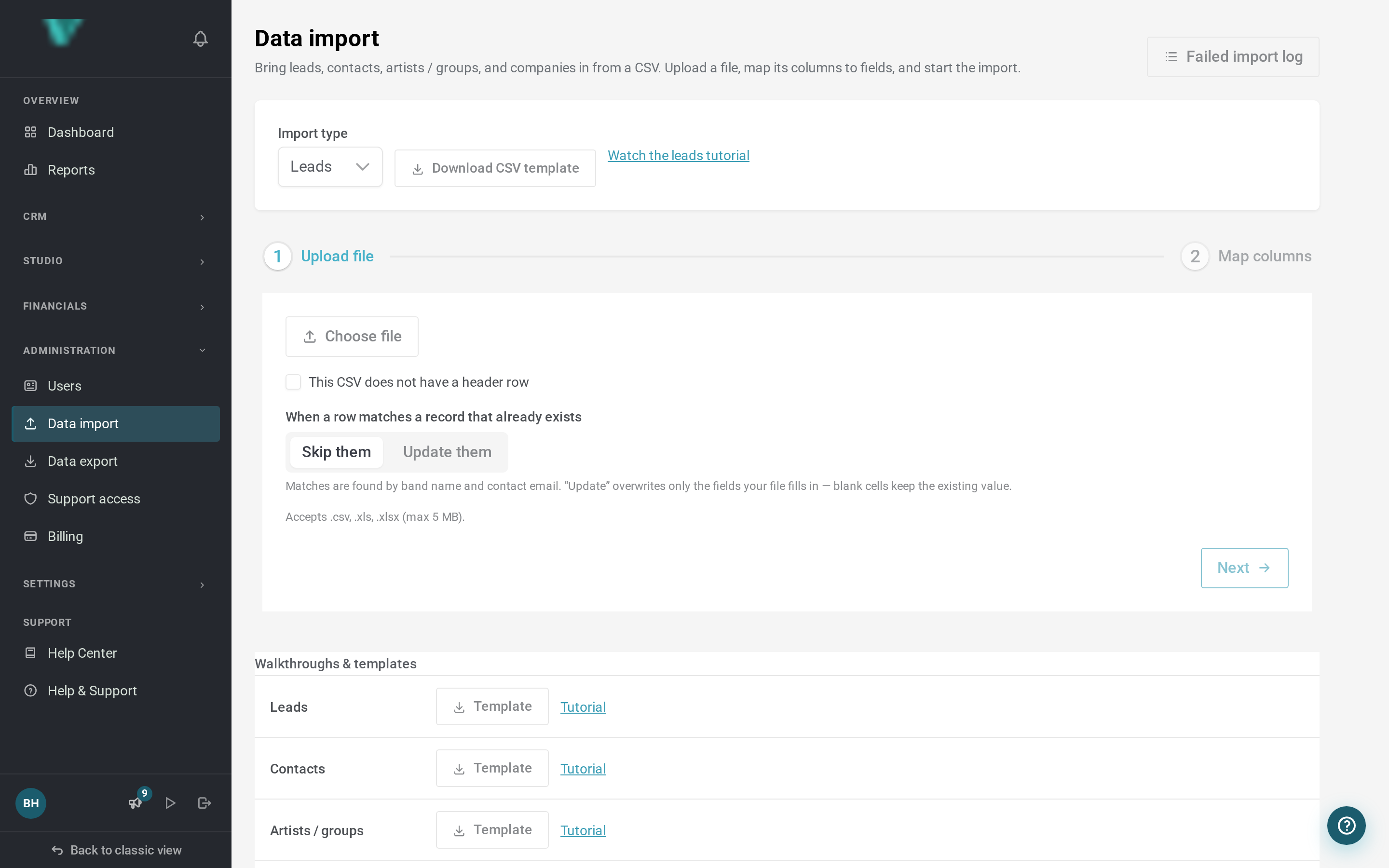
- In the sidebar, under Administration, open Data import.
- Set Import type to Contacts.
- Select Download CSV template.
Fill in your contacts under the existing header row, keeping one row per contact.
Prepare your data
Each column below maps to a contact field. Format your spreadsheet so the values match Sonido's expectations before you import.
- First Name (required). Every row needs a first name. If you do not know it, enter placeholder text so the row can still import.
- Last Name (required). Every row needs a last name. Use placeholder text if it is unknown.
- Email Address (required). Email acts as the unique identifier for a contact and must be a valid email address. If a contact has no email, use a unique placeholder for each row (for example sample1@email.com, sample2@email.com) so the rows do not collide.
- Contact Type (required). The value in each row must exactly match an option in your Contact Type option list. If your list uses types that do not yet exist in Sonido, add them first under Settings, Customization, Option lists. An extra space or a different spelling counts as a non match and will stop the import.
- Phone Number. A single phone number per contact.
- Street, City, State, Postal Code, Country. The parts of the contact's mailing address.
- Favorite Snacks/Drinks. Any snack or drink preferences.
- Primary Instrument(s). Instruments the contact plays.
- Contact Notes. Free text notes. Keep each contact's notes as a single block with no line breaks.
Save the finished list as a .csv file (the tool also accepts .xls and .xlsx). Files must be under 5 MB.
Upload the file
- Open Data import and confirm Import type is set to Contacts.
- On the Upload file step, select Choose file and pick your prepared CSV.
- If your file has no header row, tick This CSV does not have a header row.
- Under When a row matches a record that already exists, choose how duplicates are handled. Contacts are matched by email address.
- Skip them leaves the existing contact untouched.
- Update them overwrites only the fields your file fills in. Blank cells keep the existing value.
- Select Next.
Map the columns
The Map columns step shows a preview of your data. Each column header from your file sits above a dropdown where you choose the Sonido field to import that column into.
- If a column header exactly matches a Sonido field name, the correct field is preselected for you.
- For any column that is not preselected, open its dropdown and pick the matching field.
- Leave the dropdown on Skip for any column you do not want to import.
When your columns are mapped, select Start import. A confirmation message reports how many contacts were added, updated, and skipped.
Fix import errors
If the import cannot finish, an error message explains what to correct. Two common causes:
- Invalid Contact Type. A value in your Contact Type column does not exactly match an option in the Contact Type option list. Add the missing option under Settings, Customization, Option lists, or correct the value (watch for trailing spaces), then import again.
- Missing required field. One or more rows are missing First Name, Last Name, or a valid Email Address. Fill in the gaps and import again.
When some rows import but others fail, the summary notes how many rows failed and points you to the Failed import log. Open it with the Failed import log button on the Data import screen to review the specific rows and their errors.