Email Capture files client email for you. Forward an email from a client to your studio's Email Capture address, and Sonido reads it, finds or adds the right records, and saves the email where your team can see it. Email Capture is in beta.
Find your studio address
Go to Settings, then Integrations, then Email Capture. Your address is under Your studio address. Click Copy to copy it, then save it as a contact in your mail app so it's easy to forward to.
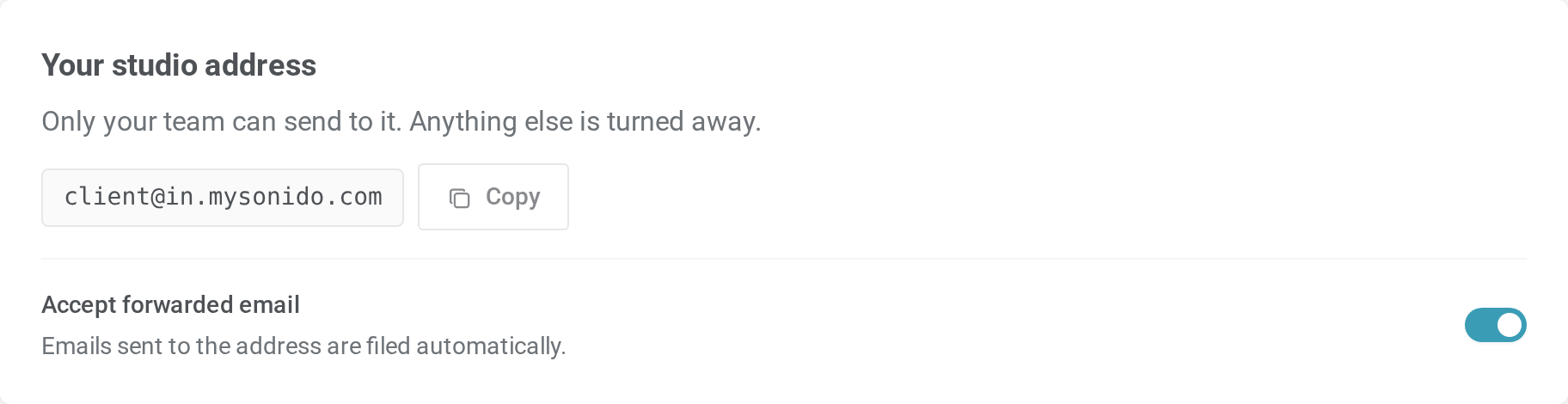
Only your team can send to this address. Email from anyone else is turned away.
To pause Email Capture, switch off Accept forwarded email on the same card. While it's off, emails sent to the address are ignored.
Forward an email
In your mail app, forward the client's email to your studio address. Forward the whole conversation if you can: Sonido reads the quoted client message, so you don't need to add anything yourself.
Sonido then:
- Finds the client's contact by their email address, or adds a new contact.
- Links the client's company and their artist or group when the email names them, adding them if they're new.
- Saves the email as a note on the contact.
- Opens a lead at the New stage when the email is a new inquiry (questions about rates, availability or a new project). If the client already has an open lead, the email is logged on that lead instead.
Sonido never changes the details of a record you already have. It only adds links and notes.
What gets created also depends on the permissions of the team member who forwarded the email. If they can't create contacts, companies, artists or leads, Sonido links to existing records only and the history shows what it didn't create.
Who can forward
Every active team member can forward from the email address they sign in to Sonido with. If someone forwards from a different mailbox, such as a personal one, an admin can add that address under Who can forward: type the address, choose who it Counts as, and click Add.
Sonido also checks that each email really came from that address, so a stranger can't send mail that looks like it's from your team.
Check what was filed
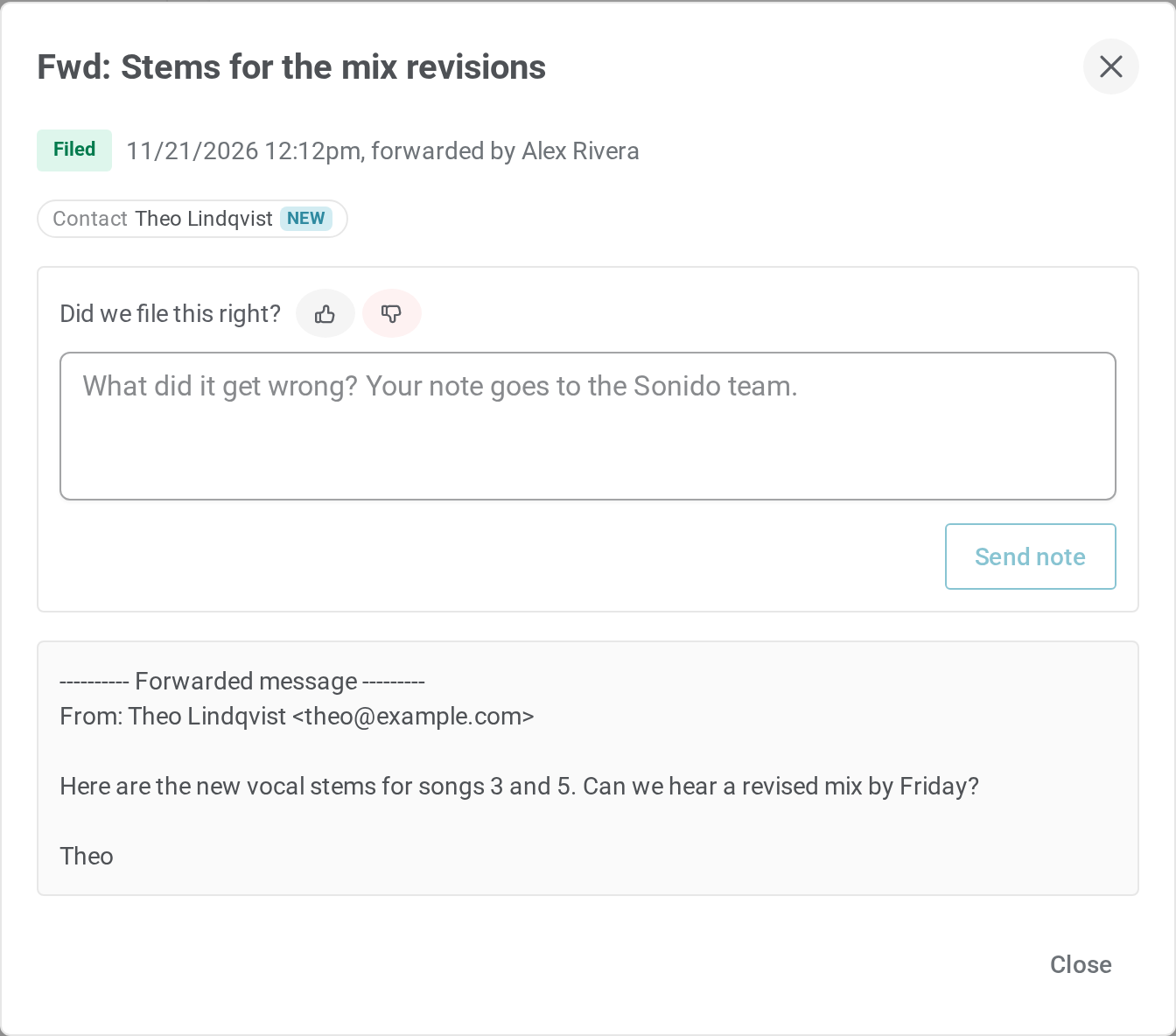
The History card at the bottom of the Email Capture page lists every email your team forwarded, newest first. Each row shows its status and the records it was filed under. Click a record to open it, or click a row to read the email and see what was and wasn't created.
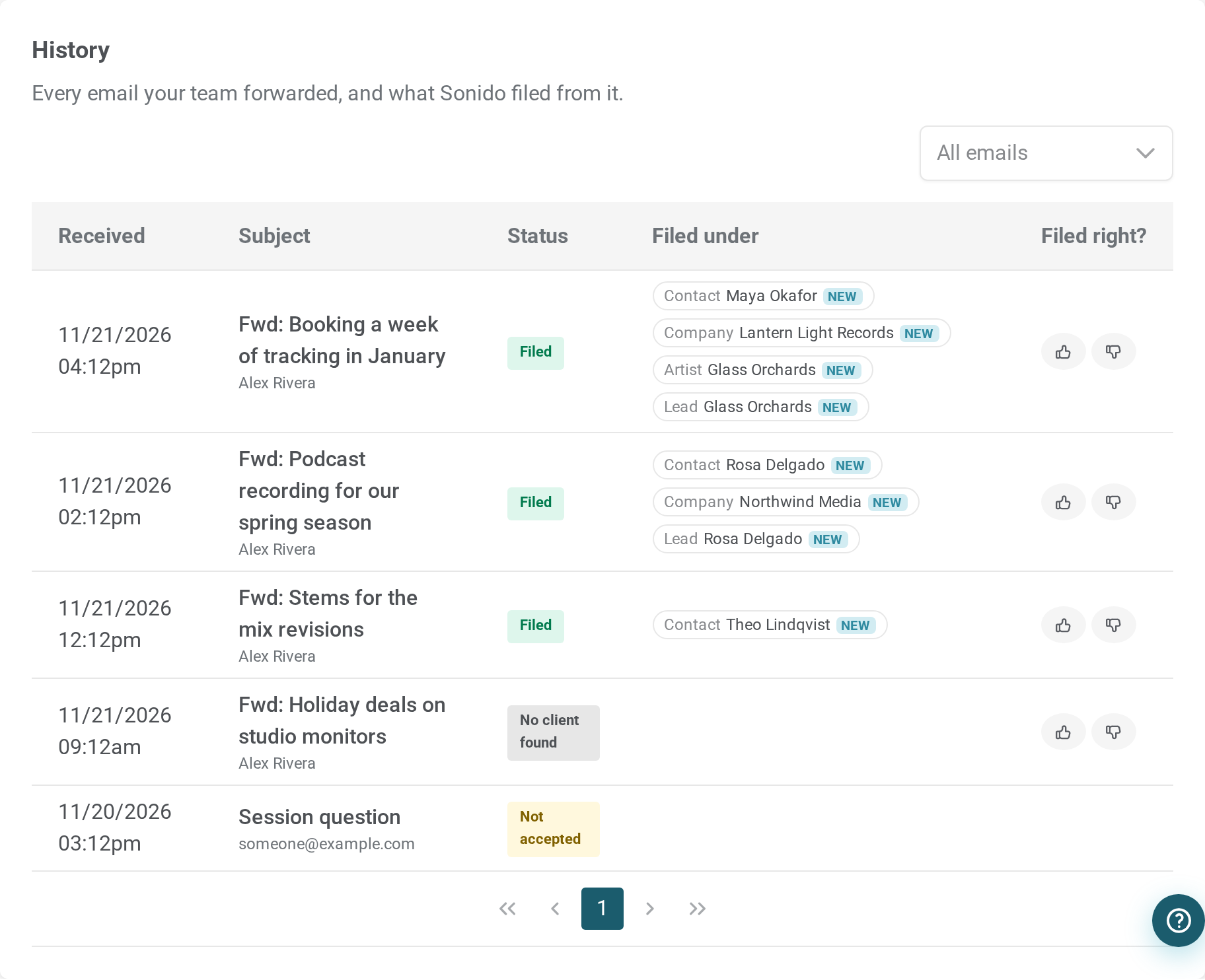
The statuses are:
- Filed: the email was read and filed.
- Waiting: the email arrived and hasn't been filed yet.
- No client found: there was no client email address in it, so nothing was filed.
- Not accepted: it came from an address that isn't on your team, or the sender couldn't be confirmed. Add the address under Who can forward if it's one of yours.
- Failed: something went wrong. Open it and click Try again, or file it by hand.
You need permission to view contacts to see the history.
Tell us if it got it right
Next to each filed email, under Filed right?, click the thumbs up if Sonido filed it correctly or the thumbs down if it didn't. Click the same thumb again to clear your vote.
When you open an email after a thumbs down, you can add a note saying what went wrong and click Send note. Your vote and note go to the Sonido team and help us improve Email Capture.