A project record is your workspace for a piece of work from start to delivery. Open one to see its schedule at a glance, edit its details in place, move it through your stages, and jump between tabs for notes, tasks, bookings, songs, files, and financials.
Open a project
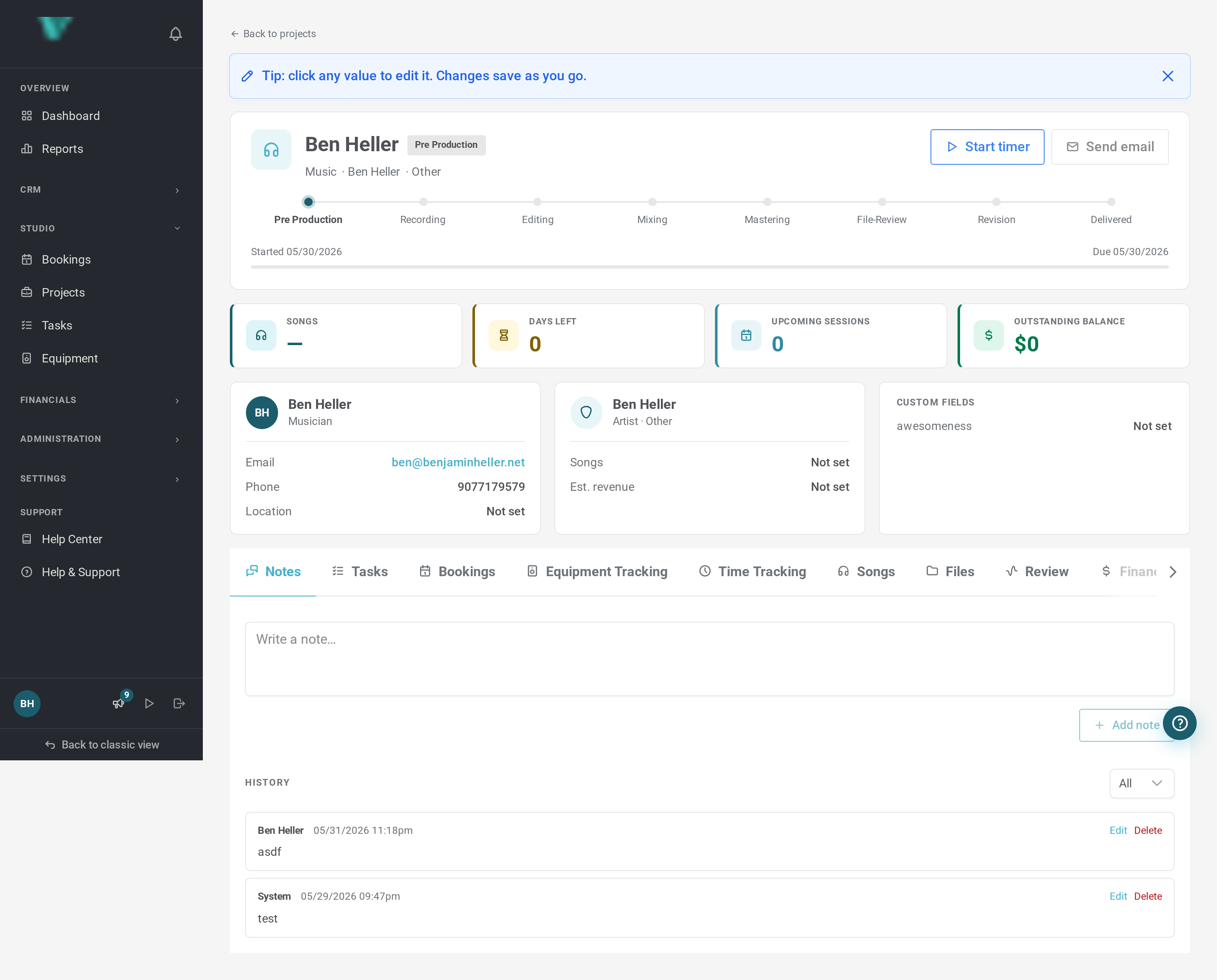
From the main menu, select Projects to open the project list, then click any row to open that project. The project record loads with a hero card at the top, a timeline strip, a row of stat cards, contact and customer cards, and a set of tabs below.
The back link at the top left, "Back to projects", returns you to the list.
Edit project details inline
Most fields on the record edit in place. Click a value to open its editor, change it, and confirm to save. There is no separate edit form or pencil icon: the value itself is the control.
You can edit inline:
- The project name, at the top of the hero card.
- The start date and due date, on the timeline strip (see below).
- Songs or Episodes, and Est. revenue, on the customer card.
- Any custom fields your studio has configured, on the custom fields card.
Inline editing requires the Project update permission. Without it, values display as read only.
Move the project through stages
The stage tag sits next to the project name in the hero card. Click it, pick a new stage from the list, and confirm. The tag color updates to match the new stage.
The timeline strip below the hero shows your project stages as a stepper, in order. Stages the project has already passed and its current stage are highlighted; later stages stay gray, so you can see progress at a glance. On narrow screens the stepper scrolls sideways.
Set the schedule
Directly under the stepper are three labels: the start on the left, a "Day X of Y" counter in the center, and the due date on the right. Click "Set start date" or "Started ..." to pick a start date, and click "Set due date" or "Due ..." to pick a due date. The progress bar beneath fills to show how much of the elapsed time between start and due has passed.
The center counter and the progress bar only appear once both a start and a due date are set.
Read the stat cards
Four cards summarize the project at a glance:
- Songs (or Episodes for a podcast project): the count on the record.
- Days left: days remaining until the due date.
- Upcoming sessions: the number of bookings tied to the project that start in the future.
- Outstanding balance: the total still owed across the project's invoices. It shows red when a balance is due and green when nothing is outstanding.
Contact and customer cards
The contact card shows the primary contact's name, email, phone, and location. The email is a clickable link that opens a new message.
The customer card shows the artist or group for a music project, or the company for other project types, along with the genre and, for music projects, the linked company when both exist. The Songs or Episodes count and the revenue estimate edit inline here.
Work the tabs
Below the cards, the tabs hold the working detail of the project. The tab you are on is remembered in the page address, so you can share or bookmark a direct link to a specific tab.
- Notes: the project's running note history. Type in the composer and select "Add note" to record a note stamped with your name and the date and time. Use the History filter to show All, User notes, or System notes. You can edit or delete your own notes.
- Tasks: tasks associated with the project. New tasks you add here default to this project.
- Bookings: studio bookings tied to the project. New bookings you associate with the project appear here.
- Equipment: the project's gear: what is checked out for it, what is reserved on its sessions, and what has been returned. Select "Scan gear" to check gear out or in right there, for the project or one of its sessions. This tab appears with the Equipment Tracking add on.
- Time Tracking: time logged against the project. This tab appears only when time tracking is enabled for your studio and you have permission to see time entries.
- Songs: appears on music projects. Select "Add song" to record a song with its name, key, meter, tempo, and notes. You can add participants (contacts with a role such as producer or engineer, seeded with their email and phone) and free form metadata rows. Use the pencil to edit a song or the trash icon to delete it.
- Files: the project's folder browser and file uploads. See Project File Storage and Project File Delivery.
- Review: appears when file review is enabled for your studio. It lists the files posted for client review.
- Financials: a summary of the project's invoices and payments in one place. With the Equipment Tracking add on, it also lists the project's equipment charges and which invoice bills each one.
Send an email or start a timer
Two actions sit at the top right of the hero card:
- Send email: opens a message to the project's contact. Your address is used as the reply to so responses come back to you. This requires the Project update permission.
- Start timer: begins tracking time against this project.