Your Profile page is where you manage your own personal settings in Sonido: your name and email, contact details, booking availability, rates, notification preferences, and password. These are your settings only. Managing other people's accounts happens under Users.
Open your profile
Click your avatar at the bottom of the left sidebar to open the Profile page. The page is organized into tabs. Each tab has its own Save button, so save one tab before moving to the next.
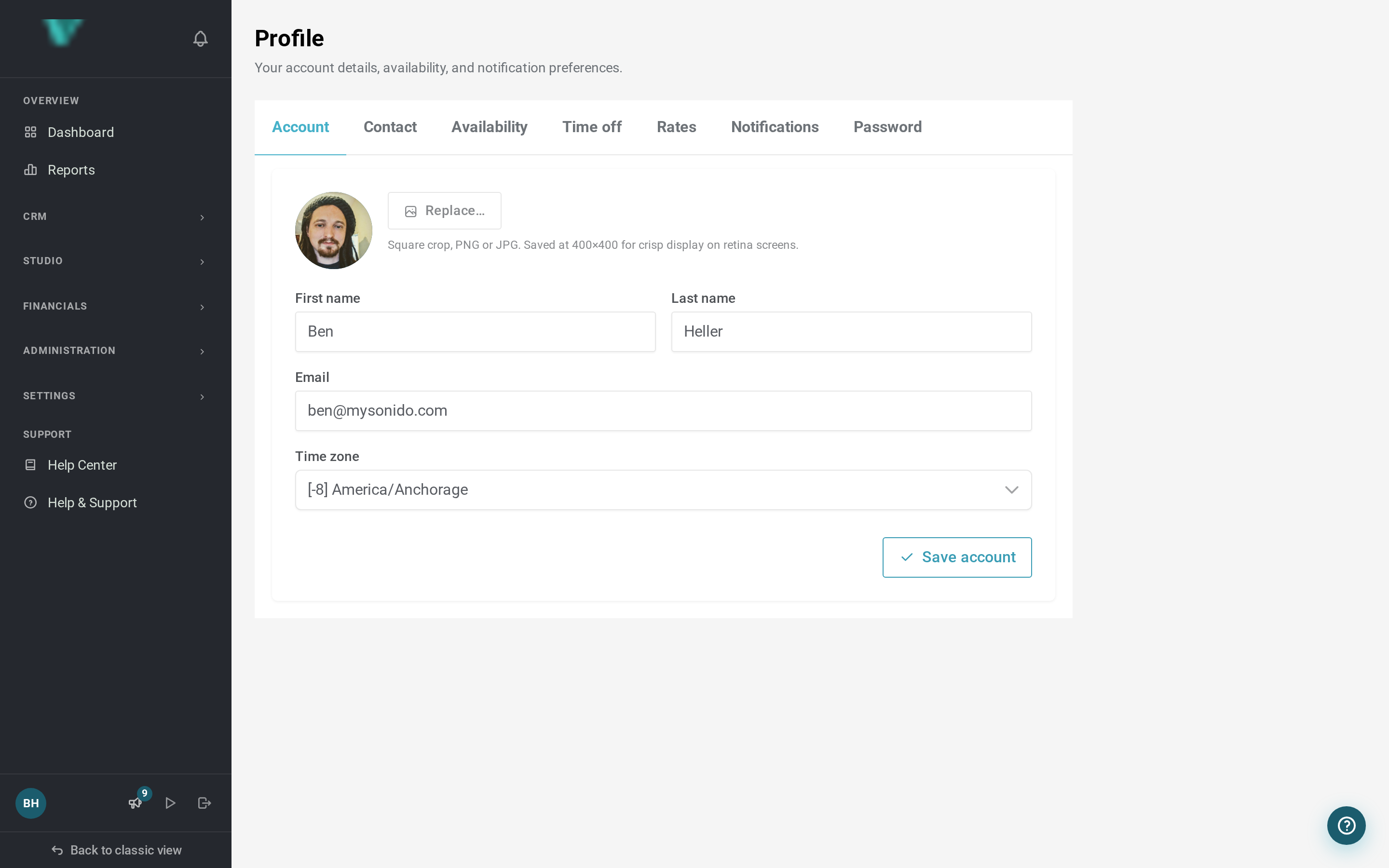
Account
The Account tab holds the essentials that appear throughout Sonido.
- First name and Last name: shown wherever your name appears, such as on notes and bookings.
- Email: where Sonido sends your notifications, and the address you sign in with.
- Time zone: keeps your calendar, notes, and other dated data displaying at the right local time. Start typing in the dropdown to filter the list.
To set a profile photo, click Choose photo… (it reads Replace… once a photo is set), pick a PNG or JPG, then drag to reposition and scroll or pinch to zoom in the crop window. Click Save crop, then Cancel if you want to discard a staged photo before saving. The image is stored as a square and saved at high resolution for crisp display.
Click Save account when you're done.
Contact
The Contact tab holds details used on quotes, invoices, and email signatures: Job title, Work phone, Ext., and Mobile phone. Anyone with permission to view user information can see these.
The Email signature field builds a signature that is automatically added to emails you send from Sonido. Click Save contact to keep your changes.
Availability
The Availability tab sets your standard working hours day by day. Scheduling and engineer assignment draw on these hours, and they drive your bookable times in the Online Booking Portal when you can be booked as an engineer.
Set an opening and closing time for each day. A closing time on or before the opening time means the slot rolls into the next day. Click Save availability to keep your hours.
Time off
If you can be booked as an engineer, a Time off tab appears. Click Manage time off to mark yourself unavailable for specific dates or time blocks (vacation days, personal days, or any period you are not available for studio bookings). Studio admins see a warning if they try to book you during these periods.
Calendar
The Calendar tab has two subscribe links you can copy into Google Calendar, Outlook, or Apple Calendar to sync your bookings. All bookings syncs every booking, and My bookings only syncs just the bookings assigned to you. Use the Copy button next to each field. Events for invoiced bookings are tagged with their payment status (a green dot for paid in full, yellow for partial payment, red for unpaid) shown on the event title and a Payment line in the event details.
Rates
The Rates tab holds your Hourly rate and Daily rate, shown with your studio's currency symbol. These are used on bookings and quotes when you're the assigned engineer, and they feed cost totals for invoicing and reporting. Click Save rates to save.
Notifications
The Notifications tab controls how Sonido alerts you.
- Sound reminder: toggle on to play a chime when a notification arrives in the app.
- Push notifications on this device: click Turn on to get notifications on this phone, tablet, or computer, even when Sonido is closed. Push is switched on per device, and Your other devices lists the rest so you can remove one you no longer use. See Push notifications.
- Notifications: a table of every event that reaches you (bookings, tasks, files and reviews, money and leads, equipment), with a switch for each way you can hear about it: Email, In app (the bell), and Push. Emails that reach you as part of a recipient list follow the same switches. A switch that is greyed out with Turned off for your whole studio was turned off by a studio admin and can only be changed in the studio's notification settings.
Click Save notifications to apply your choices.
Password
The Password tab changes your sign-in password. Enter a New password (the strength indicator gives feedback as you type) and repeat it in Confirm password. To let Sonido build a strong password for you, click Generate random password, which fills both fields. Click Update password to save.