Price lists let you save the pricing you use over and over, so you can add it to a quote or invoice in a couple of clicks instead of typing the name, rate, and description each time. Each price list item holds a name, a rate, and an optional description.
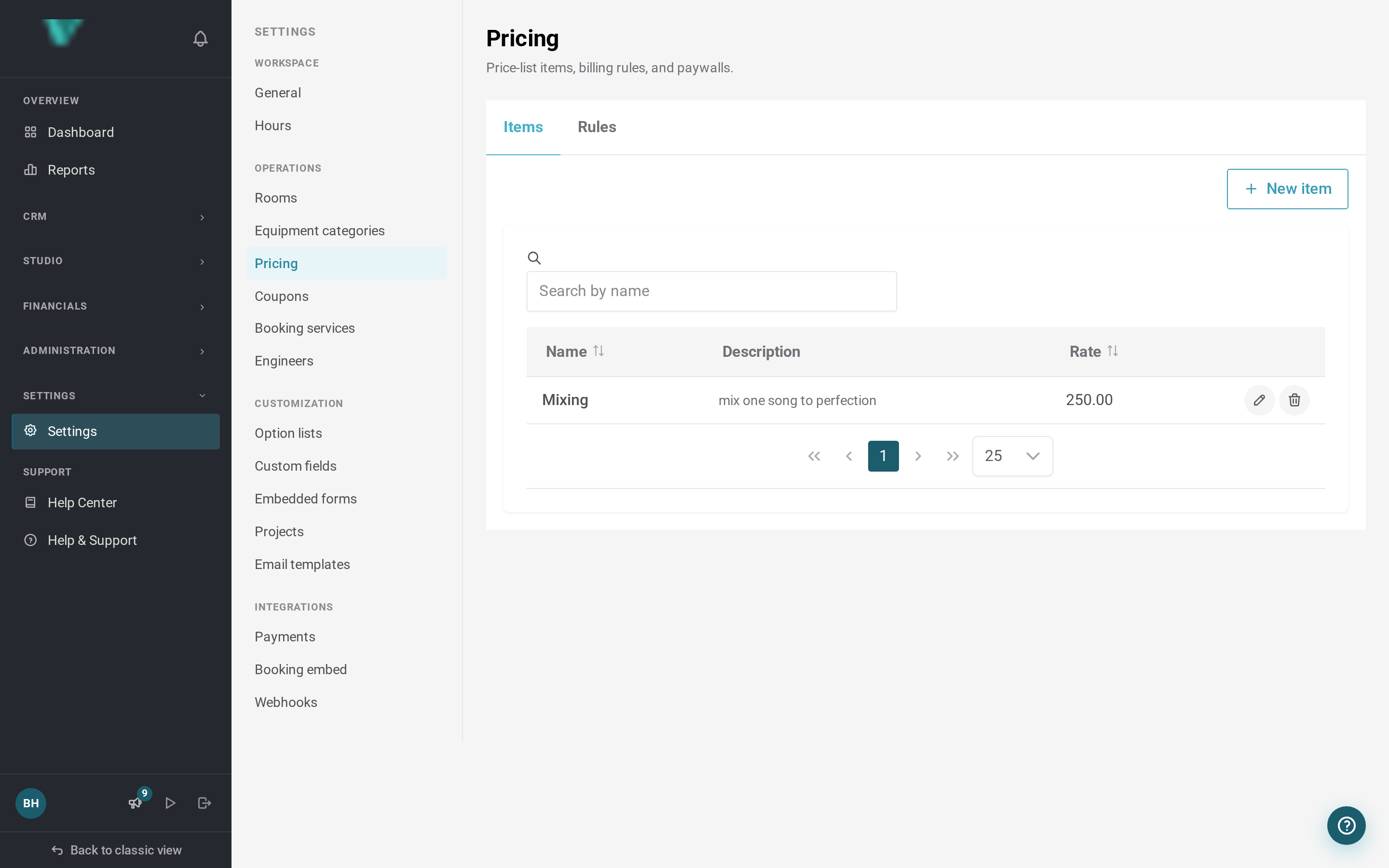
Once an item exists it becomes available for selection on your quotes and invoices, giving you and your team standardized pricing across every document you send.
Open the price list
Go to Settings, then open Operations and select Pricing. The Pricing screen opens on the Items tab, where every price list item you have created is shown in a table with its Name, Description, and Rate.
Use the Search by name box above the table to narrow a long list. Click the Name or Rate column headers to sort.
Create a price list item
- On the Items tab, click New item.
- In the dialog, fill in the fields:
- Name: the label that appears on the quote or invoice line.
- Description: optional detail about the item. This can be shown or hidden on the document when you add the item.
- Rate: the price for a single unit. Quantity defaults to 1 on a quote or invoice, so set the rate for a quantity of one.
- Click Save.
The new item appears in the table right away and is ready to use on your next quote or invoice.
Edit or delete an item
Each row has an edit icon and a delete icon at the end.
- Click the edit icon (pencil) to reopen the item in the dialog, make changes, and click Save.
- Click the delete icon (trash) to remove the item. You will be asked to confirm, and the deletion cannot be undone.
Add price list items to quotes and invoices
When you build a quote or invoice, you can pull any saved price list item onto a line instead of typing the details by hand. The item's name, rate, and description come across automatically, and you can adjust the quantity or amount on the document as needed.
Billing rules on the same screen
The Pricing screen also has a Rules tab for settings that shape how quotes and invoices total up: a daily rate threshold, sales tax, a purchase order number field, payment terms, default terms and conditions, and paywalls. These apply across your documents and are separate from the individual price list items on the Items tab.