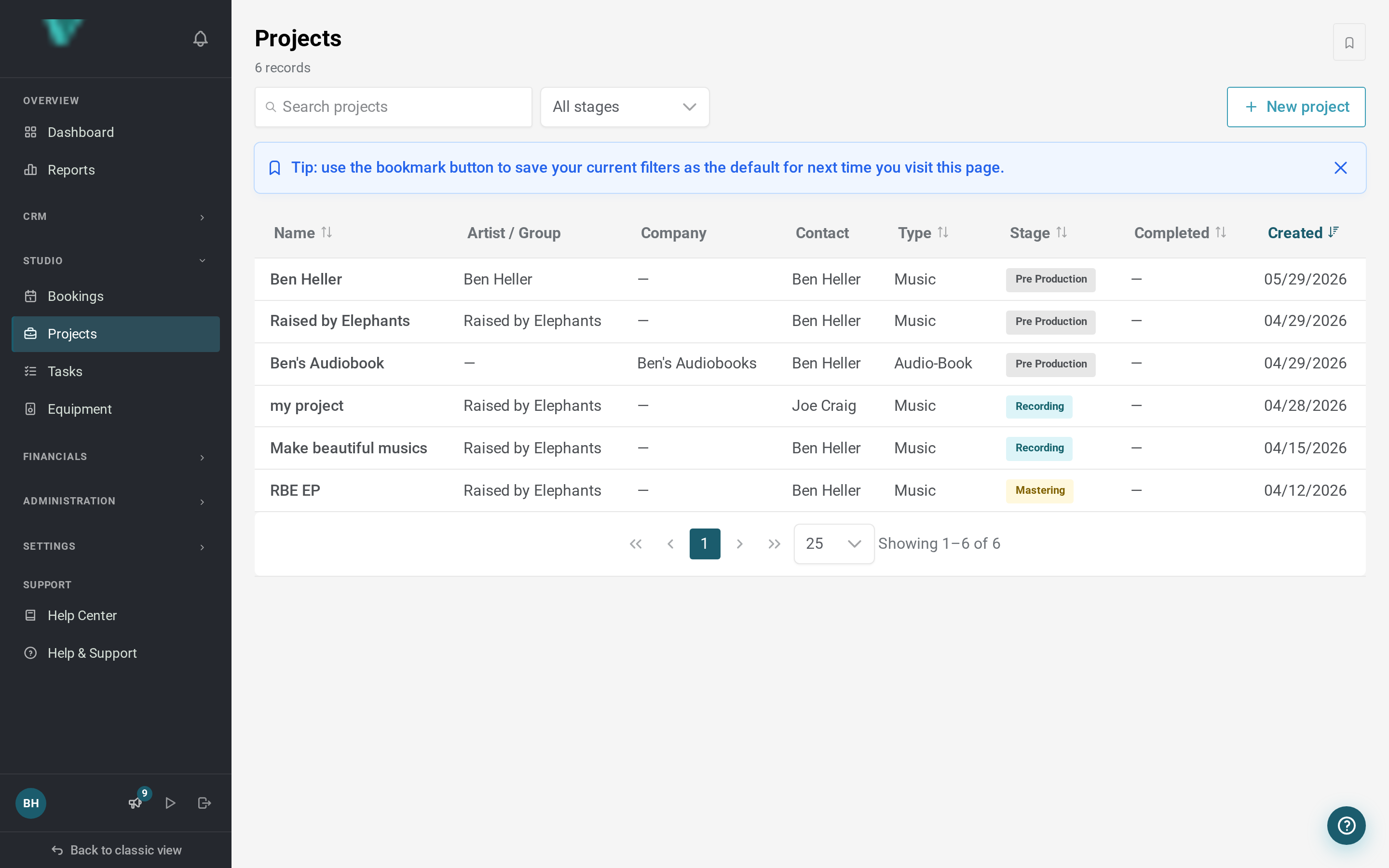
Open Projects from the sidebar to see a list of every project in your Sonido account. The list shows the project Name, Artist / Group, Company, Contact, Type, Stage, Completed date, and Created date. Click any row to open that project.
View the project list
Select Projects in the sidebar. Projects load with the most recently created at the top. Each Stage appears as a colored tag so you can scan progress at a glance.
Search projects
Type into the Search projects box at the top of the list to narrow it to matching projects. Clear the box to return to the full list.
Filter by stage
Use the stage dropdown next to the search box to filter the list. It defaults to All open, which hides projects in a delivered (completed) stage. Choose All stages to include everything, or pick a single stage to see only projects at that step.
To make your current stage filter the default every time you open the list, click the bookmark button (its tooltip reads "Save current filters as your default").
Sort the list
Click any sortable column header (Name, Type, Stage, Completed, or Created) to sort by that column. Click the same header again to reverse the direction.
Open a project
Click a project row to open its detail page, where you can update fields, manage files, review songs, track time, and more. See "Manage Projects" for what you can do there.
Create a new project
Click New project at the top of the list to open the new project page. Fill in the sections and click Create project:
- Identity — Name, Type (Music, Podcast, Audiobook, Voiceover, Post production, or Other), Stage, and Genre.
- Client — Primary contact. Music projects ask for an Artist / group; other types ask for a Company.
- Schedule — Start and Due dates.
- Details — number of songs or episodes, number of sessions, a revenue estimate, and a session files location.
- Notes — an optional note saved as the project's first whiteboard note.
Name, Type, Stage, Genre, the client field, Start, and Due are required. If any custom project fields are set up for your studio, they appear below these sections. After you create the project, Sonido opens its detail page.
Converting a lead also creates a project automatically. For repeat business, it is usually best to start a new project tied to the existing contact here rather than creating a duplicate lead.