A project type classifies a project or lead by the kind of work involved. Sonido offers six types: Music, Podcast, Audiobook, Voiceover, Post production, and Other. The type you pick shapes the record, since some fields only make sense for certain kinds of work.
How the type changes a project
Music projects behave a little differently from the rest. When you set the type to Music, the record shows an Artist / group field and a Number of songs field, because music work is tied to an artist and a song count.
Every other type (Podcast, Audiobook, Voiceover, Post production, Other) drops those two fields and shows a Company field instead. Podcast projects also get a Number of episodes field. In short, Music is artist and song oriented, while the other types are company oriented.
Choose a type when creating a project
On the New project page you pick the type first, in the Type field. It is a set of options covering Music, Podcast, Post production, Audiobook, Voiceover, and Other. Only the types your studio has turned on appear here (see below). As soon as you choose, the form updates the fields to match: Music reveals Artist / group and # of songs, the other types reveal Company (and # of episodes for Podcast).
Leads work the same way. When you create a lead you also choose a project type, and if you later convert that lead into a project the type carries over.
Turn types on or off for your studio
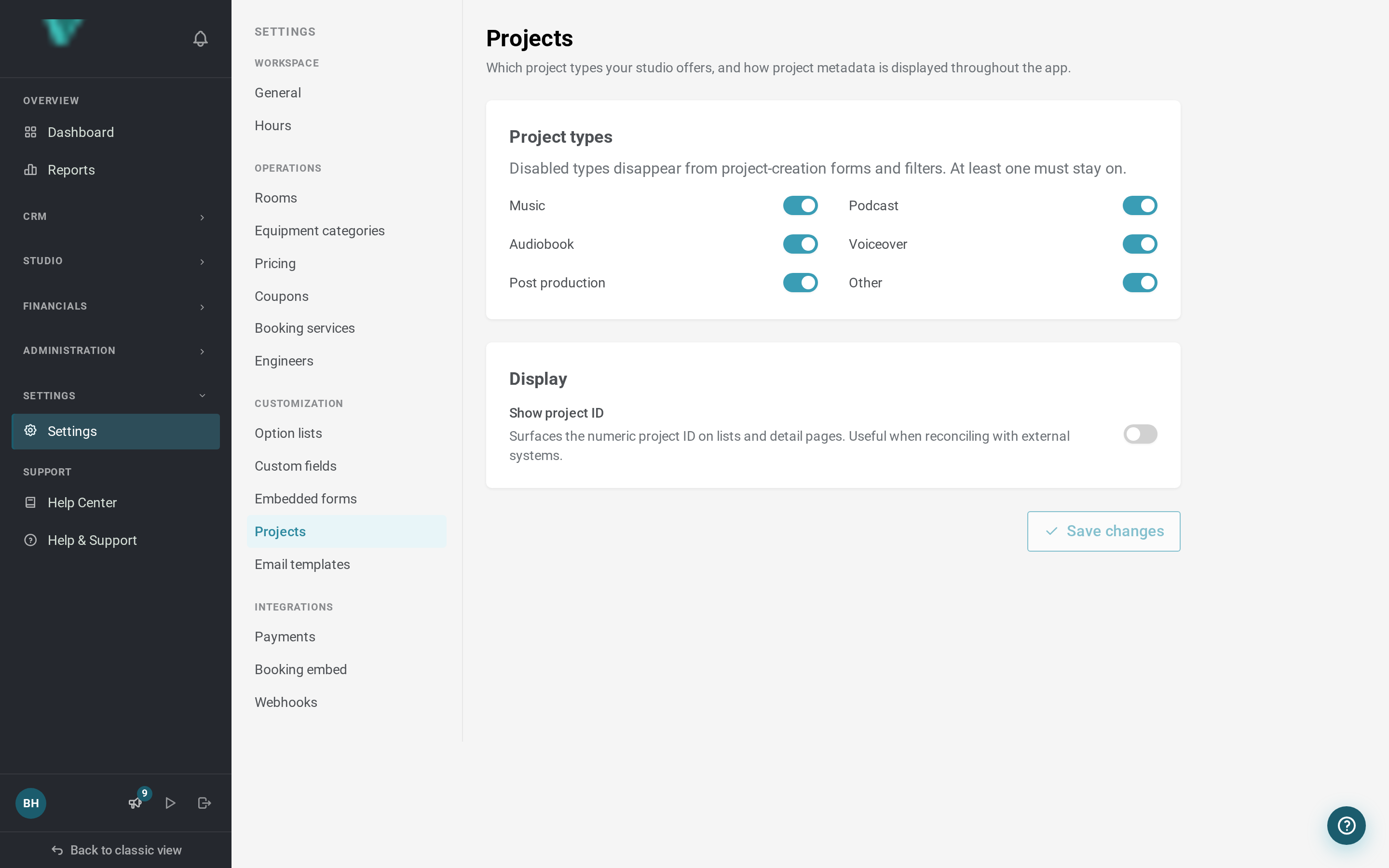
You control which types your studio works with, so you are not offered options that never apply to your business. Go to Settings, then Customization, then Projects.
Under the Project types heading you will see a switch for each type: Music, Podcast, Audiobook, Voiceover, Post production, and Other. Turn off any type you do not use. A type you disable no longer appears as an option when creating new leads or projects, and it drops out of the project list filters.
At least one type must stay enabled. If you turn them all off, Sonido will not let you save.
When your selections are set, click Save changes.
Show the project ID
The same settings page has a Display section with a Show project ID switch. Turn it on to surface each project's numeric ID on lists and detail pages, which is handy when reconciling projects with an external system. This setting is separate from project types but lives on the same screen.