When you email a quote or an invoice to a client, Sonido sends it with a cover email. You can customize the wording of that email once, and every quote or invoice you send afterward will use it. Templates support dynamic variables that fill in the client name, document number, totals, and your studio details automatically.
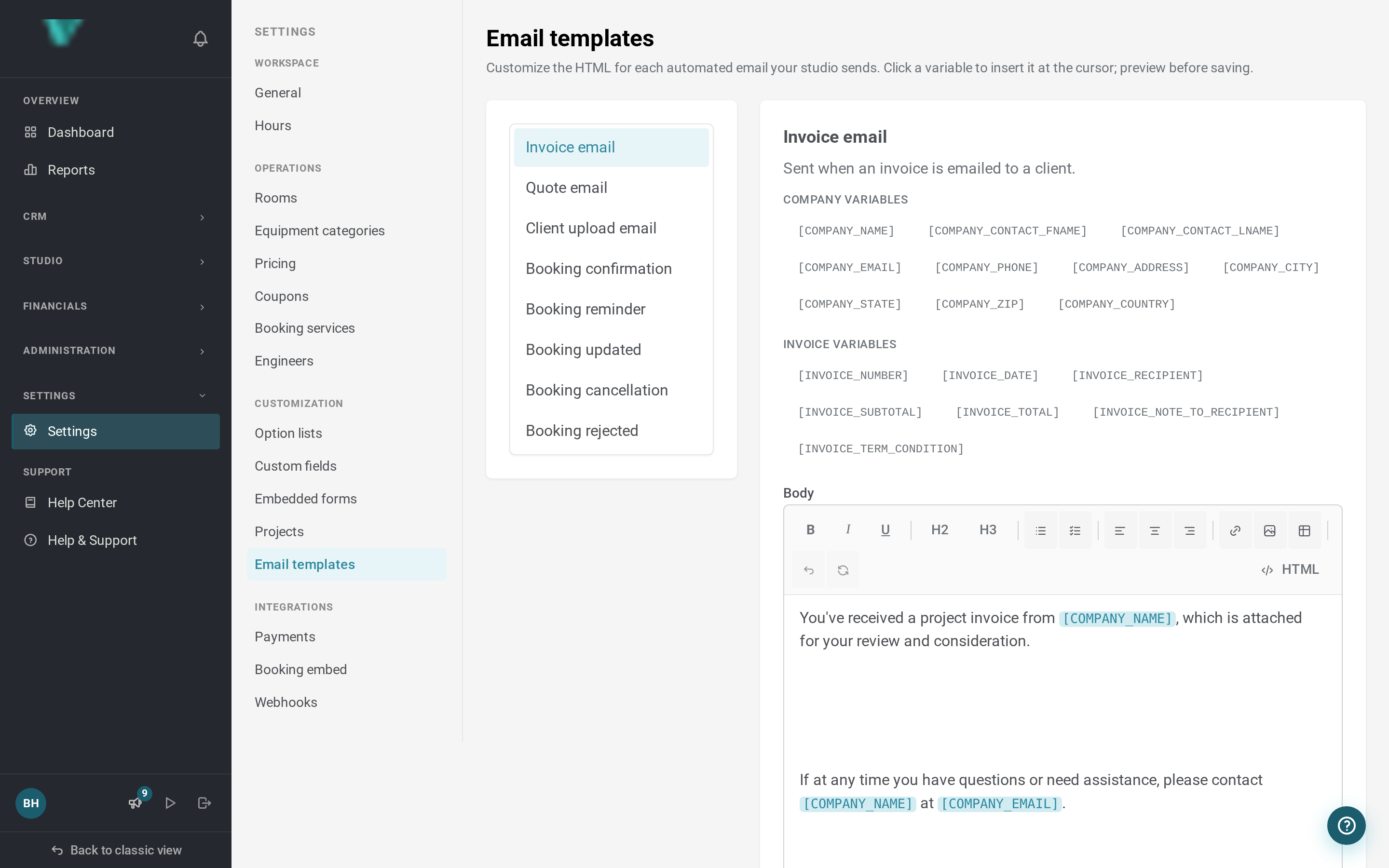
Open the email templates screen
Go to Settings in the sidebar, then open Customization and select Email templates. The screen lists every automated email your studio sends down the left side. Select Quote email or Invoice email to edit the one you want.
Editing templates requires the Setting-company.update permission.
Edit the email body
The Body area is a rich text editor pre filled with Sonido's standard wording. Type your own copy over it, apply formatting, and it will replace the default. To paste in or hand edit raw markup, use the HTML toggle above the editor.
Insert dynamic variables
Above the editor, variables are grouped into buttons. Place your cursor where you want a value to appear, then click a variable button to insert it at the cursor. At send time each token is replaced with the real value for that quote or invoice.
The Quote email and Invoice email templates offer two groups of variables.
Company variables pull from your studio profile on the Workspace General settings page:
[COMPANY_NAME][COMPANY_CONTACT_FNAME][COMPANY_CONTACT_LNAME][COMPANY_EMAIL][COMPANY_PHONE][COMPANY_ADDRESS][COMPANY_CITY][COMPANY_STATE][COMPANY_ZIP][COMPANY_COUNTRY]
Quote variables (on the Quote email template) pull from the quote itself:
[QUOTE_NUMBER][QUOTE_DATE][QUOTE_RECIPIENT][QUOTE_SUBTOTAL][QUOTE_TOTAL][QUOTE_NOTE_TO_RECIPIENT][QUOTE_TERM_CONDITION]
Invoice variables (on the Invoice email template) pull from the invoice:
[INVOICE_NUMBER][INVOICE_DATE][INVOICE_RECIPIENT][INVOICE_SUBTOTAL][INVOICE_TOTAL][INVOICE_NOTE_TO_RECIPIENT][INVOICE_TERM_CONDITION]
Preview before saving
Select Preview to open a rendered version of the email in a dialog. The preview fills the variables with sample data so you can check the layout and wording. The real values are used when you actually send a quote or invoice.
Save your changes
When you are happy with the template, select Save. If you want to back out, select Discard changes to restore the last saved version. Each template is saved on its own, so save one before switching to the other in the list.