To view all of your quotes, open Financials, then Quotes from the main menu. The Quotes list shows every quote in your account with its date, quote number, recipient, status, and final amount. Click any row to open that quote.
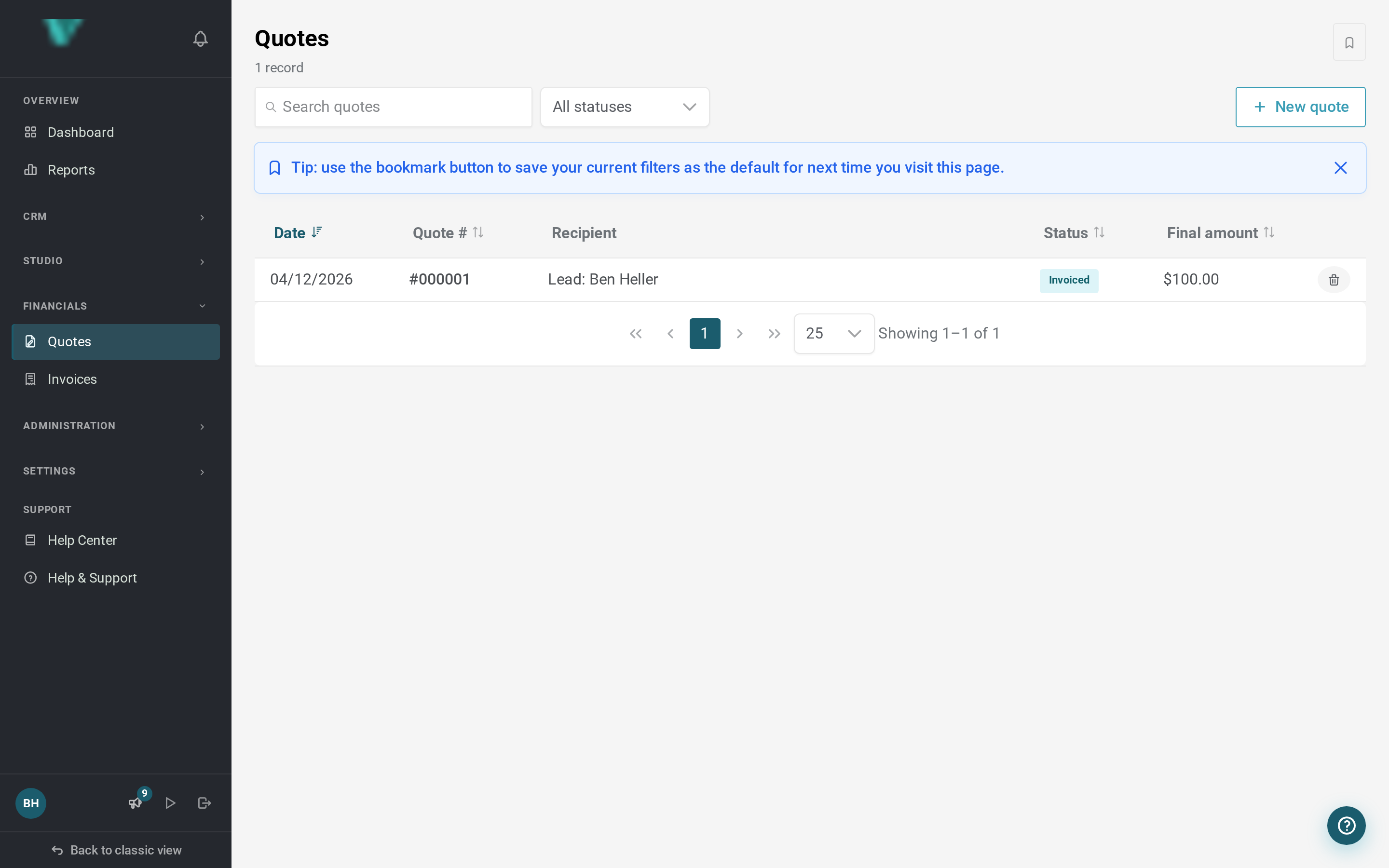
Create a new quote
Select the New quote button at the top of the list. This opens the full quote page where you fill in the recipient, details, and line items. See Creating quotes for the step by step.
Search the list
Use the Search quotes field above the table to find a quote. Results filter as you type. Clear the field to show the full list again.
Filter by status
The status dropdown next to the search field limits the list to a single status. The options are All statuses, Draft, Saved, Sent, Accepted, Rejected, and Invoiced. Each status also appears as a colored tag in the Status column:
- Draft: the quote has been created and saved but not yet sent.
- Saved: the quote has been saved for later work.
- Sent: the quote has been sent to its recipient and is awaiting a response.
- Accepted: the recipient accepted the quote.
- Rejected: the recipient rejected the quote.
- Invoiced: the quote has been converted into an invoice.
Save your default filters
Once you have a status filter you use often, select the bookmark button (top right of the list) to save the current filter as your default. The next time you open Quotes, that filter is applied automatically.
Sort the list
Select a column header to sort by that column. The Date, Quote #, Status, and Final amount columns are sortable. Select the same header again to reverse the direction (for example oldest to newest, or newest to oldest).
Move between pages
When you have more quotes than fit on one page, use the page controls at the bottom of the list to move between pages. The rows per page picker lets you show 10, 25, 50, or 100 quotes at a time.
Delete a quote
If you have permission to delete quotes, a trash icon appears at the end of each row. Select it, then confirm in the dialog that appears. Deleting a quote cannot be undone, so be sure before you confirm.