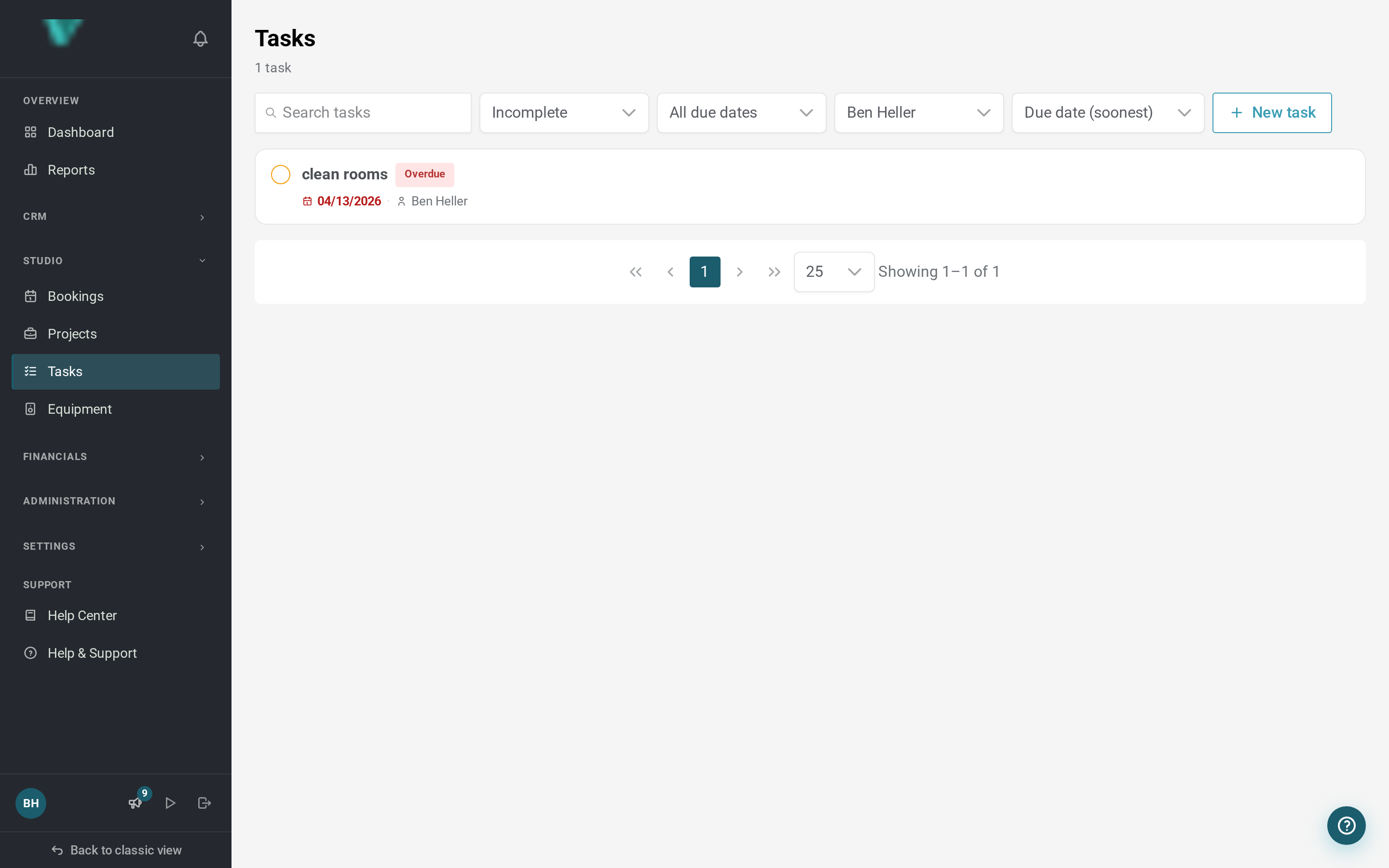
To see every task in your studio, open Tasks from the sidebar. The list shows one row per task with its title, status, due date, any linked record, and the people it is assigned to. When you first land on the page it shows incomplete tasks assigned to you, which is what most people want to check first.
Create a task
Select the New task button in the top right of the toolbar to open the create form. See "Create a To Do" for the full walkthrough.
Search tasks
Type into the Search tasks field to narrow the list by title or details. The list updates as you type.
Filter the list
Three dropdowns in the toolbar let you focus the list. Each one filters by a single value at a time.
- Status: choose All, Incomplete, or Completed. The list opens on Incomplete, which covers every open task.
- Due date: choose All due dates, Today, Next 7 days, Next 30 days, or Overdue.
- Assignee: choose All assignees or a specific person. The list opens filtered to you. You can search within this dropdown to find a name quickly.
Sort the list
Use the sort dropdown to order the results. The options are Due date (soonest) (the default), Due date (latest), Title (A to Z), and Status.
Understand task status
Each row carries a status badge:
- Completed: the task has been marked done.
- Incomplete: the task is still open and not yet past its due date.
- Overdue: the task is still open and its due date has passed. Overdue tasks also show their due date in red.
Mark a task complete or incomplete
Select the round checkbox on the left of a row to mark that task complete. A green check appears and the title is struck through. Select it again to reopen the task. The row stays visible until the next time the list reloads, so a task you just completed does not vanish from under you.
Edit a task
Select anywhere on a task row to open the Edit task window. From there you can change the title, due date, reminder, details, assignees, and the linked record, or toggle the Completed switch. Select Save to apply your changes, or Cancel to close without saving.
Page through tasks
When you have more tasks than fit on one page, use the page controls at the bottom of the list. The dropdown there sets how many tasks show per page (10, 25, 50, or 100).