The Bookings calendar is where all of your studio scheduling lives. Every session, event, or reminder appears here, and each booking can stand on its own or be associated with a Contact, Company, Artist / Group, Lead, or Project.
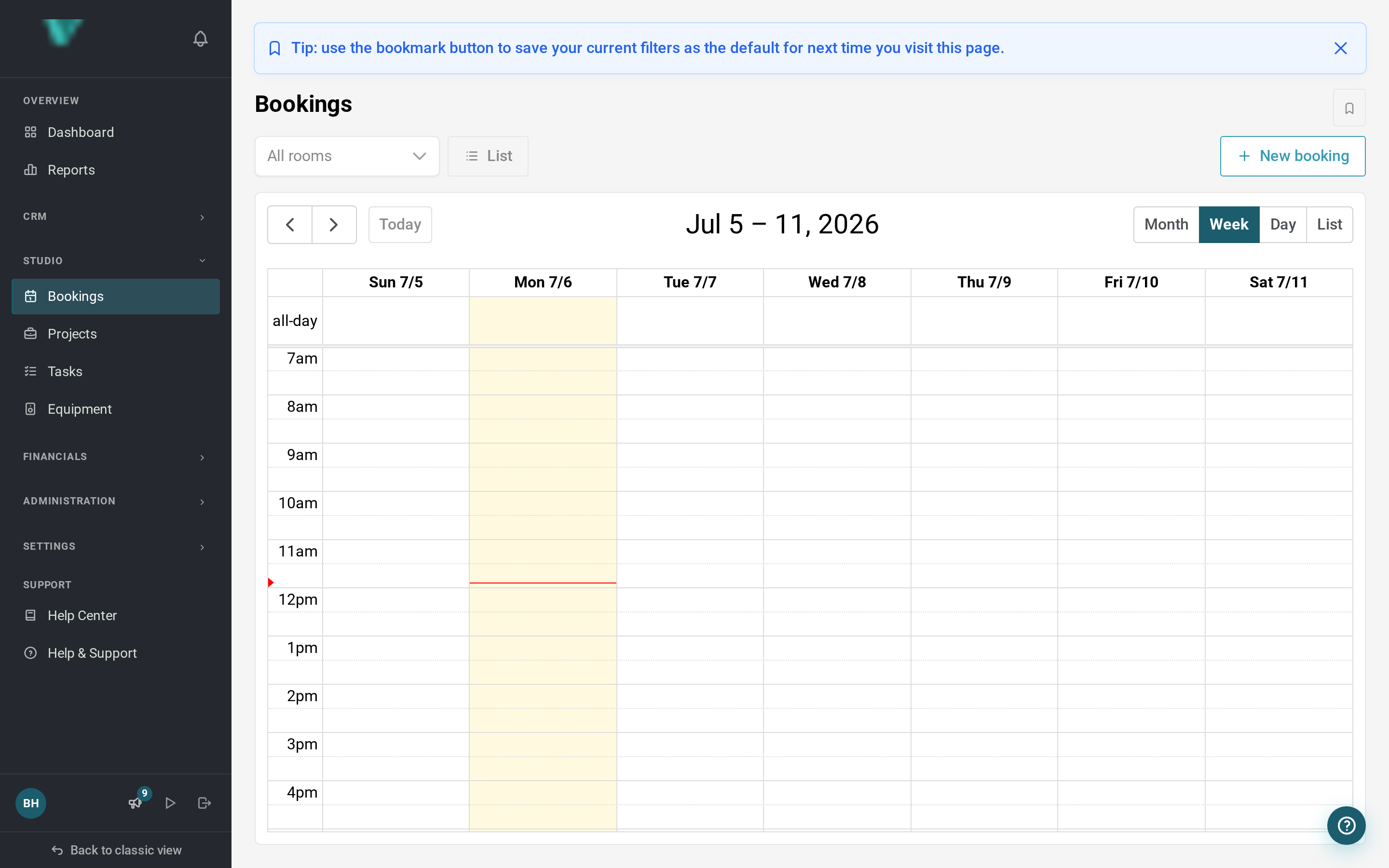
Open the calendar
Select Bookings from the Studio section of the main menu. The calendar loads to the current week on desktop and to a list on mobile.
Use the toolbar at the top of the calendar to move around:
- Today jumps back to the current date.
- Month, Week, and Day switch the grid view.
- List switches to an agenda style list that is easy to scan on a phone.
- The prev and next arrows step backward and forward through the range.
Filter by room
The All rooms dropdown near the top of the calendar limits the view to a single room. Pick a room to show only its bookings, or leave it on All rooms to see everything.
To keep the same room selected the next time you open the calendar, select the bookmark button (Save current filters as your default).
Read the calendar at a glance
Bookings are color coded automatically. When your studio has three or more rooms in view, each color corresponds to a room, otherwise colors correspond to the event type.
A few visual cues help you scan quickly:
- Bookings that are still pending show a diagonal stripe pattern.
- A booking linked to an invoice shows a small dollar badge. A green check means paid in full, a yellow dot means a partial payment (with the remaining balance in the tooltip), and a red x means unpaid. The invoice badge appears only if you have permission to view billing.
Open a booking
Select any event to open its quick view. The quick view shows the schedule, room, event type, status, associated record, assigned users, description, guests, linked tasks, and any linked invoice.
From the quick view you can edit common scheduling fields in place: click the start time, end time, status, room, or event type to change it, then confirm to save.
The action buttons in the quick view let you:
- Edit booking opens the full booking form for everything the quick view does not cover.
- Clone booking creates a copy you can adjust and save as a new booking.
- Create invoice starts an invoice linked to the booking (shown when the booking is not already billed).
- Delete removes the booking.
The buttons you see depend on your permissions.
Approve a booking request
When a booking arrives through your online booking portal and needs approval, its quick view shows a banner reading "This is a booking request awaiting approval." Select Approve to confirm it, or Reject to decline (the client is notified).
Switch to the list
Select List in the calendar toolbar actions to open the bookings list view, a searchable, paginated table of every booking. Selecting a row there opens the full booking detail page rather than the quick view.
Create a booking
Select New booking to open the booking form, or open the step by step guide for the full walkthrough.