Option lists are the dropdown values that appear on records throughout Sonido. Each list ships with a set of default values, and you can add your own, rename them, reorder them, disable ones you no longer use, or delete them. Changes flow through to every record that uses the field.
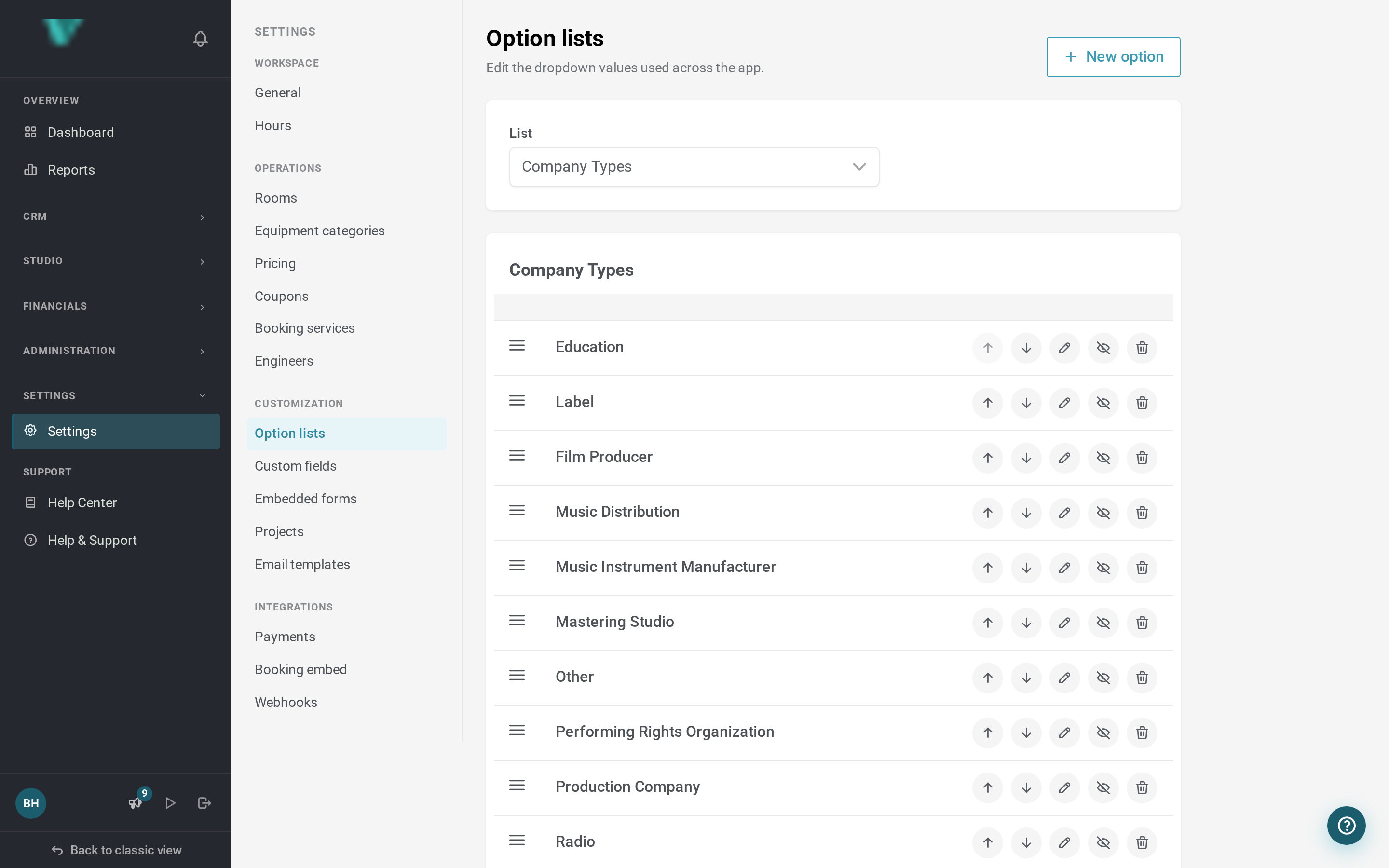
The lists you can manage are:
- Booking Roles
- Company Types
- Contact Types
- Department
- Event Types
- Genres
- Referral Sources
- Lead Closed Lost Reasons
- Lead Stages
- Payment Types
- Project Stages
- Project Song Participant Types
The equipment lists (home locations, check out destinations, departments, and warranty groups) are managed under Settings, Operations, Equipment instead. See Equipment Categories.
Open the Option lists screen
From the sidebar, open Settings, then in the Customization section choose Option lists. Use the List dropdown at the top of the page to pick the list you want to manage. The table below updates to show every value currently in that list.
Add a new option
Click New option in the top right. In the dialog, enter a Name, then click Save. The new value appears in the list right away and becomes selectable on records that use the field.
For the Lead Stages and Project Stages lists, the dialog also shows a stage toggle. Leave it on for an Active stage (leads or projects in this stage count as open work), or turn it off for a Closed stage.
Reorder options
The order of the rows is the order values appear in the dropdown. Drag a row by its handle to move it, or use the up and down arrow buttons on each row. The new order saves automatically.
Rename an option
Click the pencil (edit) button on a row, change the Name in the dialog, and click Save. The updated name is reflected on all records that use it.
Disable an option
Disabling a value hides it from the dropdown going forward without removing it from records that already use it. This preserves your historical data for reporting.
Click the eye button on a row to disable it. Disabled values stay in the table with a Disabled tag and appear dimmed. Click the same button again to re enable a disabled value.
Delete an option
Click the trash button on a row. A confirmation dialog appears; click Delete to confirm.
If the value is still in use on one or more records, the delete fails and you see an error message. This protects your data. To remove a value that is in use, first update the records that reference it to a different value, then delete it. If you only want to stop the value from being selected going forward, disable it instead.
Locked (system) options
A few values drive built in workflow logic and cannot be edited, disabled, or deleted. For example, in Project Stages, "Pre Production" is assigned automatically to new projects created from bookings and leads, and "Delivered" sets the completion date and excludes the project from active project filters. Lead Stages has similar locked values for conversion and lost outcomes. These rows show an explanatory note, and their edit, disable, and delete actions are unavailable.
Permissions
You need the picklist permissions to work with option lists: reading requires view access, and adding, renaming, reordering, disabling, or deleting each require the matching create, update, or delete permission. If your role lacks a permission, the related buttons do not appear.