Equipment categories are a two level taxonomy you use to group the equipment items in your studio. A category is a high level grouping (for example "Microphone", "Instrument", or "Computer"), and a subcategory sits one level deeper under a category (for example "Dynamic", "Condenser", or "Ribbon" under "Microphone").
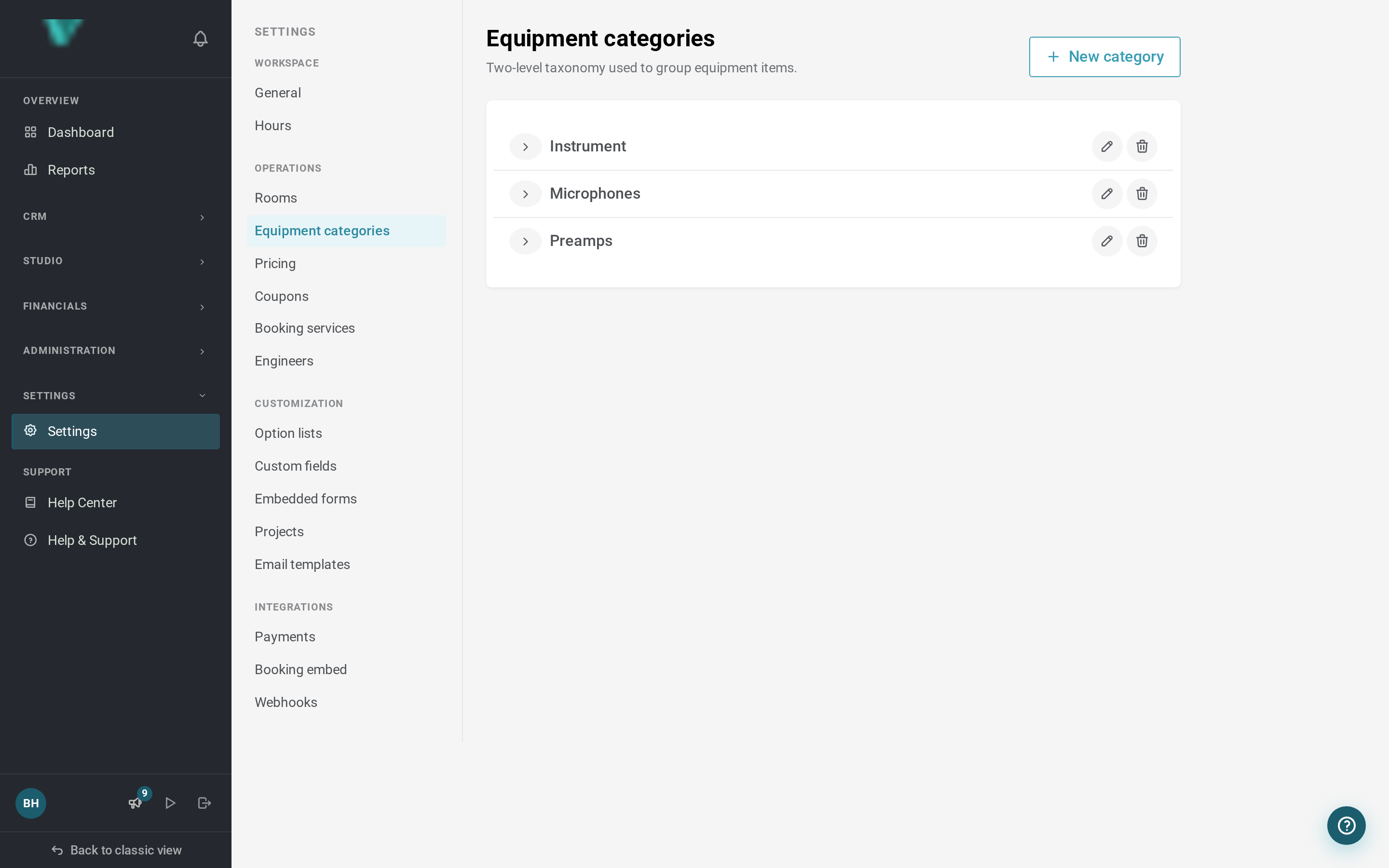
Every piece of equipment must belong to a category. A subcategory is optional. Because a category is required when you add equipment, it helps to build out your categories before you start adding items.
Open equipment settings
Go to Settings, then Operations, then Equipment. The page has a tab for each list used on equipment:
- Categories: your categories, as an expandable tree.
- Home locations: where each item lives when it is not checked out.
- Check out destinations: places gear can go when checked out, besides your studio rooms (for example Outside studio).
- Departments and Warranty groups.
The four option list tabs work like any other option list: add, rename, reorder, disable, or delete values (see Option Lists). The rest of this article covers the Categories tab.
You need the Setting-equipmentCategory.read permission to see this screen.
Create a category
Click "New category" in the top right of the screen. A dialog opens with a single "Name" field. Type the category name and click "Save".
The new category appears in the list. Repeat for each top level category you need. You can return to this screen to add or manage categories at any time.
The "New category" button is only shown if you have the Setting-equipmentCategory.create permission.
Add a subcategory
Each category row has a chevron on the left. Click the chevron to expand the category and reveal its subcategories.
With the category expanded, click "Add subcategory". A dialog opens titled "New subcategory in" the category name, with a "Name" field. Type the subcategory name and click "Save". The subcategory appears indented under its parent category.
Edit a category or subcategory
Click the pencil icon on any category or subcategory row. A dialog opens titled "Edit" the current name, with the "Name" field prefilled. Change the name and click "Save". Editing is only available with the Setting-equipmentCategory.update permission.
Delete a category or subcategory
Click the trash icon on the row you want to remove, then confirm in the "Delete category" dialog.
A category that still has subcategories cannot be deleted. If you try, you will see a "Has subcategories" message asking you to delete or move the subcategories first. Delete the subcategories, then delete the parent category. Deleting is only available with the Setting-equipmentCategory.delete permission.
Use categories on equipment
Once your categories and subcategories exist, they become available as the Category and Subcategory options when you create or edit equipment in Equipment Management.