Open Leads from the CRM section of the sidebar to see every lead saved in your account. The list is where you find, filter, and open leads, and where you start a new one.
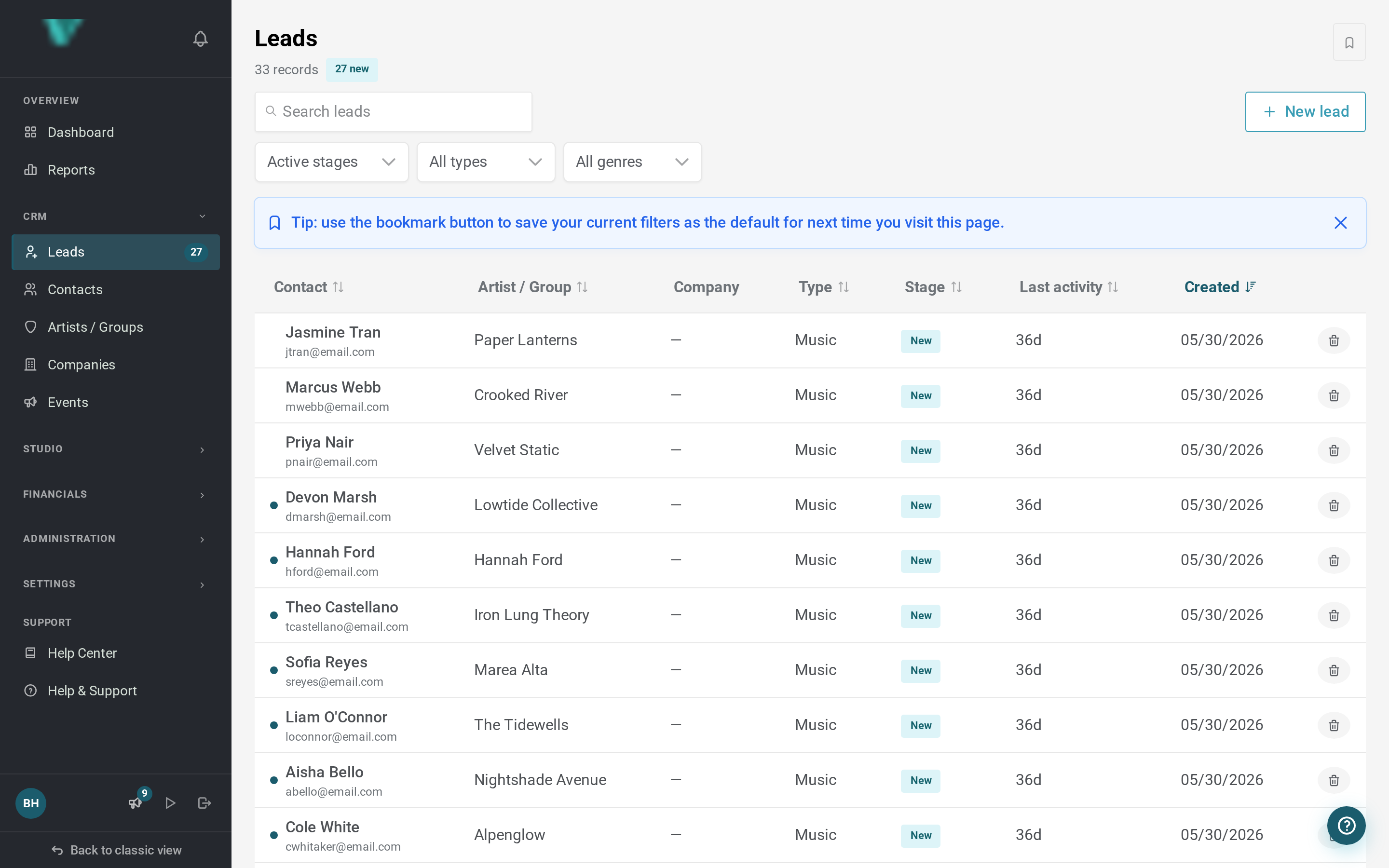
Open the lead list
In the sidebar, under CRM, click Leads. When you have leads you have not opened yet, a badge next to the sidebar link shows how many are new.
Read the list
Each row shows a lead at a glance:
- Contact: the primary contact's name and email. A blue dot next to the name means the lead is new (you have not opened it yet).
- Artist / Group: the linked artist or group name for music leads.
- Company: the linked company for podcast and video leads.
- Type: Music, Podcast, or Video.
- Stage: the current pipeline stage, shown as a colored tag.
- Last activity: how many days since the most recent note or update (for example, "15d").
- Created: the date the lead was created.
Above the list, a new tag shows how many leads you have not opened yet. Hover it to confirm what it counts.
Click Sort on any sortable column header to reorder the list. Clicking again reverses the direction. Use the page controls at the bottom of the list to move between pages and to set how many leads show per page.
Search leads
Type a name or other detail into the Search leads box at the top of the list. The list narrows to leads whose contact, artist or group, or company matches what you typed. Clear the box to return to the full list.
Filter the list
Three dropdowns sit above the list:
- Stage: choose Active stages (the default, which hides Closed Lost and converted leads), All stages, or a single stage.
- Type: choose All types, Music, Podcast, or Video.
- Genre: choose All genres or a single genre.
To keep the current combination as your starting point every time you open the list, click the bookmark button at the end of the filter row (its tooltip reads "Save current filters as your default").
Open a lead
Click any row to open that lead's detail page, where you can manage the record, add notes, and move it through your pipeline. See Manage a lead for what you can do there.
Create a new lead
Click New lead at the top of the list to open the lead form. See Add a lead for a walkthrough of the fields.
Delete a lead
If you have permission to delete leads, a trash button appears at the end of each row. Click it and confirm in the dialog to remove the lead. This cannot be undone, so delete only when you are sure.